> ## Documentation Index
> Fetch the complete documentation index at: https://docs-dev-update-explain-log-stream-pause.mintlify.site/llms.txt
> Use this file to discover all available pages before exploring further.
> Learn how to manage XAA flows in the Okta Admin Console.
# Manage Cross App Access (XAA) in Okta
Cross App Access (XAA) is currently in Beta. By using this feature, you agree to the applicable Free Trial terms in Okta’s [Master Subscription Agreement](https://www.okta.com/legal). To learn more about Auth0's product release cycle, read [Product Release Stages](/docs/ja-jp/troubleshoot/product-lifecycle/product-release-stages). To participate in this program, contact [Auth0 Support](https://support.auth0.com/) or your Technical Account Manager.
Once you've finished setting up your end-to-end test environment, you can manage how valid XAA applications can connect to each other in the Okta Admin Console.
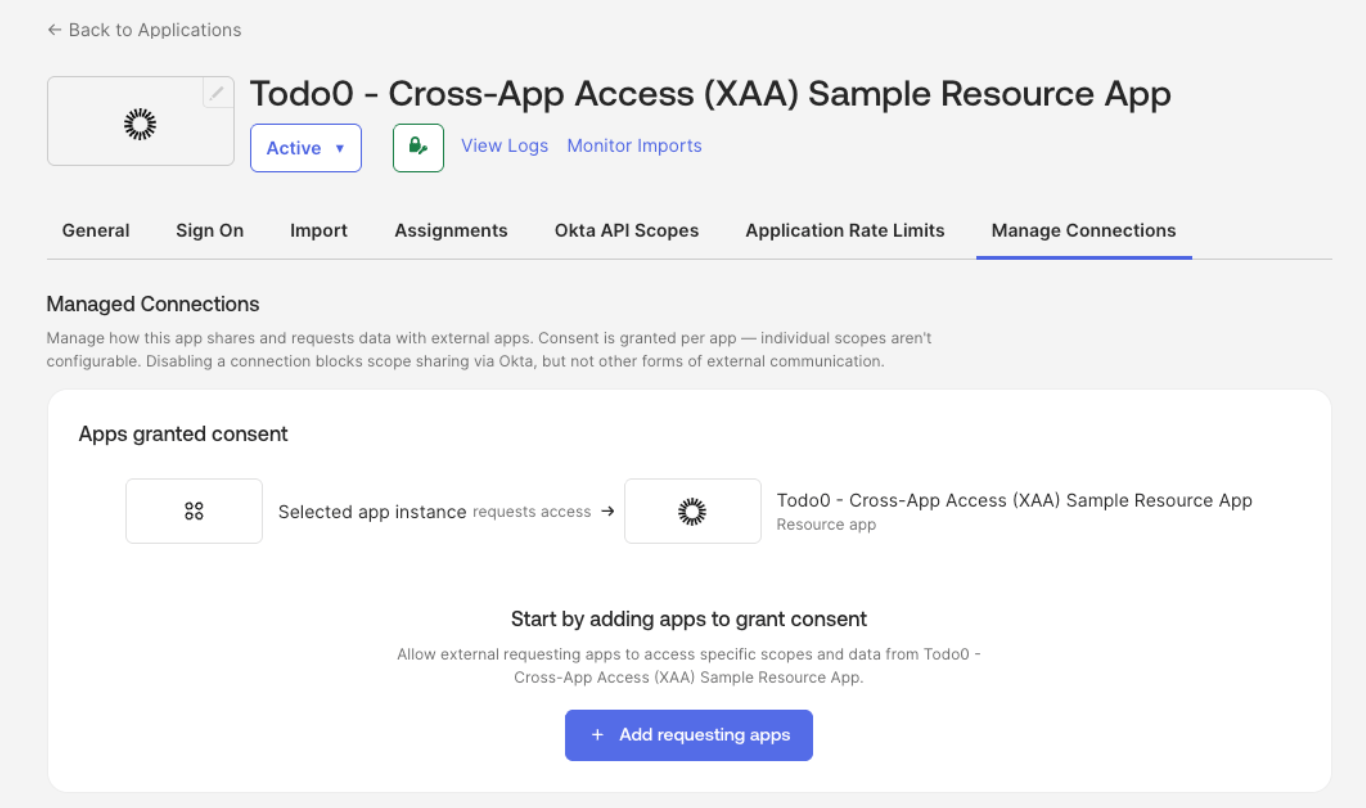 In the Okta Admin Console:
1. Navigate to **Applications > Applications** and select your Resource App (e.g. Todo0).
2. Under the **Manage Connections** tab, add:
* Requesting Apps: applications that can connect to your SaaS application
* Resource Apps: applications your SaaS application can connect to
For the end-to-end test environment, add Agent0, or the application you want to use for testing, as an authorized Requesting App.
In the Okta Admin Console:
1. Navigate to **Applications > Applications** and select your Resource App (e.g. Todo0).
2. Under the **Manage Connections** tab, add:
* Requesting Apps: applications that can connect to your SaaS application
* Resource Apps: applications your SaaS application can connect to
For the end-to-end test environment, add Agent0, or the application you want to use for testing, as an authorized Requesting App.