> ## Documentation Index
> Fetch the complete documentation index at: https://docs-dev-update-explain-log-stream-pause.mintlify.site/llms.txt
> Use this file to discover all available pages before exploring further.

# Tester les connexions d’entreprise

> Apprenez à tester les connexions d’entreprise pour les applications à l’aide de Auth Dashboard.

Vous pouvez tester les connexions d’entreprise des applications à l’aide de <Tooltip href="/docs/fr-ca/glossary?term=auth0-dashboard" tip="Auth0 Dashboard
Principal produit d’Auth0 pour configurer vos services." cta="Voir le glossaire">Auth0 Dashboard</Tooltip>.

Pour tester correctement, vous devez avoir [configuré votre connexion d’entreprise](/docs/fr-ca/authenticate/identity-providers/enterprise-identity-providers/enable-enterprise-connections).

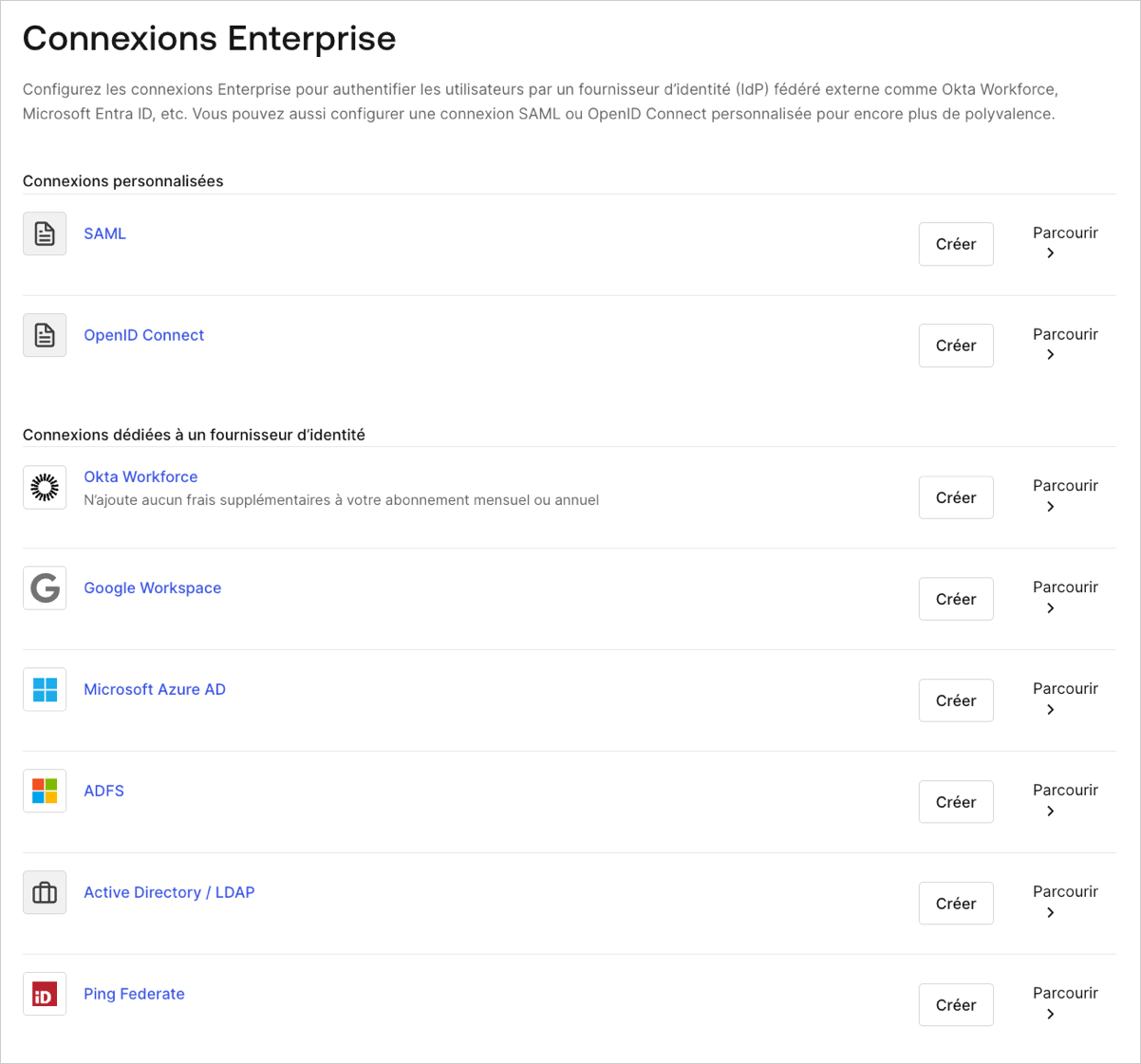
1. Naviguez vers [Auth0 Dashboard > Authentification > Entreprise](https://manage.auth0.com/#/connections/enterprise), et sélectionnez le type de connexion à afficher.
   <Frame>
     <img src="https://mintcdn.com/docs-dev-update-explain-log-stream-pause/IZKLss1aPTMADXA6/docs/images/fr-ca/cdy7uua7fh8z/1fSTcrZpkgkPR64NnI1lr8/4effc408fd5dda9818d307c7b798243c/Enterprise_Connections_-_FR.png?fit=max&auto=format&n=IZKLss1aPTMADXA6&q=85&s=19838a2b8c50d3b10c4f3a9386d51841" alt="Dashboard (Tableau de bord) - Connections (Connexions) - Enterprise (Entreprise)" width="1202" height="1121" data-path="docs/images/fr-ca/cdy7uua7fh8z/1fSTcrZpkgkPR64NnI1lr8/4effc408fd5dda9818d307c7b798243c/Enterprise_Connections_-_FR.png" />
   </Frame>

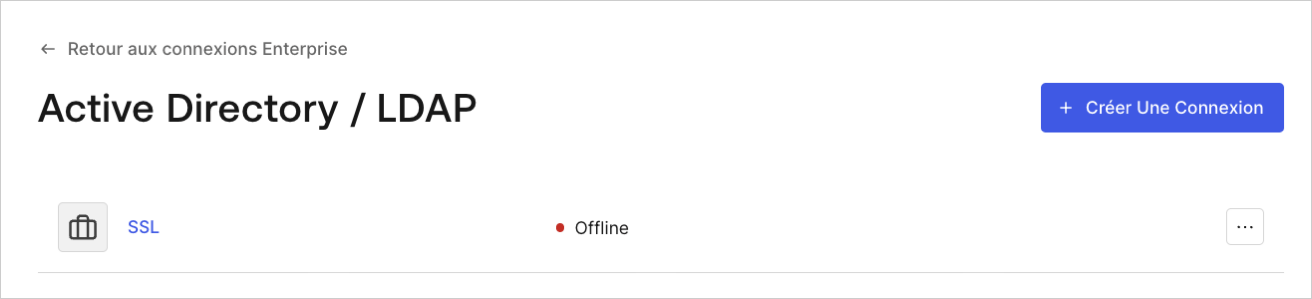
2. Sélectionnez la flèche **Essayer** en regard de la connexion que vous souhaitez tester.
   <Frame>
     <img src="https://mintcdn.com/docs-dev-update-explain-log-stream-pause/IZKLss1aPTMADXA6/docs/images/fr-ca/cdy7uua7fh8z/1sxfMEARFGmA6cPMlWkx3c/518fbad91eae21aedcc881ffc6a19f5b/LDAP_page_-_FR.png?fit=max&auto=format&n=IZKLss1aPTMADXA6&q=85&s=cd6557d40d2efefd0bbb085e0a4a980e" alt="Dashboard – Connexions – Entreprise – Identifiant Entra – Liste" width="1312" height="299" data-path="docs/images/fr-ca/cdy7uua7fh8z/1sxfMEARFGmA6cPMlWkx3c/518fbad91eae21aedcc881ffc6a19f5b/LDAP_page_-_FR.png" />
   </Frame>

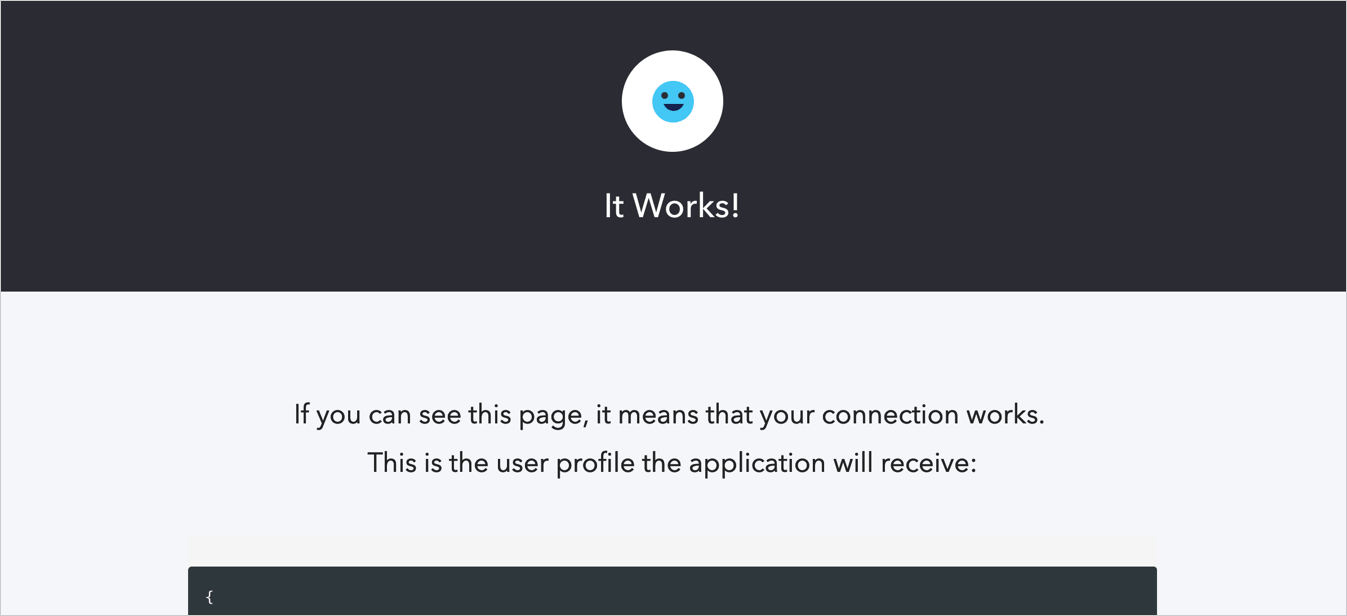
3. Connectez-vous et donnez votre accord pour autoriser l’accès à votre application. Si la configuration est correcte, la page **Ça marche!** s’affiche.
   <Frame>
     <img src="https://mintcdn.com/docs-dev-update-explain-log-stream-pause/GNv22-Y-tjD77LZP/docs/images/fr-ca/cdy7uua7fh8z/5DWJWLf8zvZJH0rSlhK0cr/f33377edf6f82f17e11e08ec30d8d75a/connection-social-try-success.png?fit=max&auto=format&n=GNv22-Y-tjD77LZP&q=85&s=15acbcd85d23da1dc705c344b62e8673" alt="Dashboard - Connections - Database - Try - Success" width="1347" height="616" data-path="docs/images/fr-ca/cdy7uua7fh8z/5DWJWLf8zvZJH0rSlhK0cr/f33377edf6f82f17e11e08ec30d8d75a/connection-social-try-success.png" />
   </Frame>
