> ## Documentation Index
> Fetch the complete documentation index at: https://docs-dev-update-explain-log-stream-pause.mintlify.site/llms.txt
> Use this file to discover all available pages before exploring further.

> Learn how to configure an update policy form using Forms for Actions for users to review and accept new terms of service or consent updates.

# Use Cases: Configure an update policy form using Forms

<Card title="Before you start">
  1. Create a [Machine-to-Machine Application](/docs/get-started/auth0-overview/create-applications/machine-to-machine-apps) with the following scopes enabled:

  * `read:users`
  * `update:users`
  * `create:users`
  * `read:users_app_metadata`
  * `update:users_app_metadata`
  * `create:users_app_metadata`

  2. Add a [Vault connection](/docs/customize/forms/vault) using the M2M application credentials.
</Card>

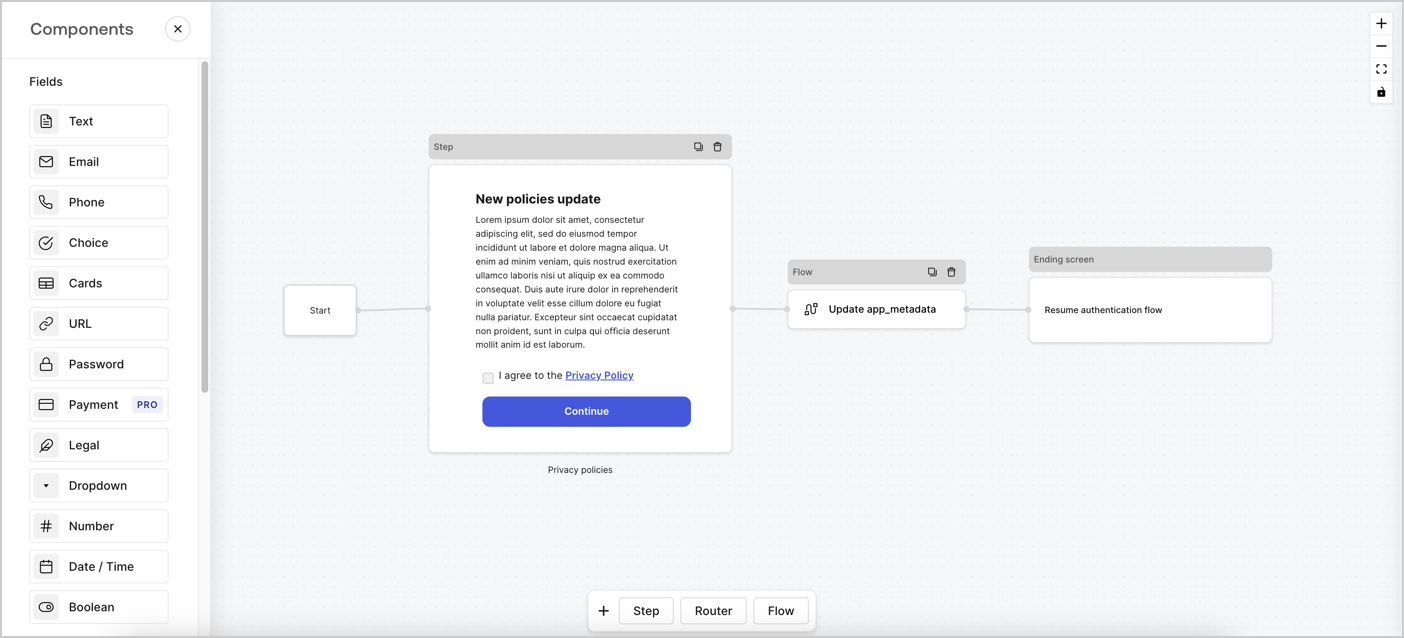
Forms for Actions allows you to create custom privacy policies flows and store the consent under the `app_metadata` object.
<Frame>
  <img src="https://mintcdn.com/docs-dev-update-explain-log-stream-pause/XXyEcRdaHQRqAede/docs/images/cdy7uua7fh8z/6i68dMvHDTijfRmSgN1x8Q/ad900e7d4c0fb34645921435472b8684/privavy-policy-form.png?fit=max&auto=format&n=XXyEcRdaHQRqAede&q=85&s=5e1dedab68061c0426438f99d9ba093b" alt="Dashboard > Actions > Forms > Privacy policy use case" data-og-width="1404" width="1404" data-og-height="638" height="638" data-path="docs/images/cdy7uua7fh8z/6i68dMvHDTijfRmSgN1x8Q/ad900e7d4c0fb34645921435472b8684/privavy-policy-form.png" data-optimize="true" data-opv="3" srcset="https://mintcdn.com/docs-dev-update-explain-log-stream-pause/XXyEcRdaHQRqAede/docs/images/cdy7uua7fh8z/6i68dMvHDTijfRmSgN1x8Q/ad900e7d4c0fb34645921435472b8684/privavy-policy-form.png?w=280&fit=max&auto=format&n=XXyEcRdaHQRqAede&q=85&s=4b7b56c126a256c8b48524bc599858b7 280w, https://mintcdn.com/docs-dev-update-explain-log-stream-pause/XXyEcRdaHQRqAede/docs/images/cdy7uua7fh8z/6i68dMvHDTijfRmSgN1x8Q/ad900e7d4c0fb34645921435472b8684/privavy-policy-form.png?w=560&fit=max&auto=format&n=XXyEcRdaHQRqAede&q=85&s=8289a3dc105cf6ed3f28ccecf28c6f6a 560w, https://mintcdn.com/docs-dev-update-explain-log-stream-pause/XXyEcRdaHQRqAede/docs/images/cdy7uua7fh8z/6i68dMvHDTijfRmSgN1x8Q/ad900e7d4c0fb34645921435472b8684/privavy-policy-form.png?w=840&fit=max&auto=format&n=XXyEcRdaHQRqAede&q=85&s=03daff618144cad0a438bae74dd6f15f 840w, https://mintcdn.com/docs-dev-update-explain-log-stream-pause/XXyEcRdaHQRqAede/docs/images/cdy7uua7fh8z/6i68dMvHDTijfRmSgN1x8Q/ad900e7d4c0fb34645921435472b8684/privavy-policy-form.png?w=1100&fit=max&auto=format&n=XXyEcRdaHQRqAede&q=85&s=e795dae255afc3ebab727fbf199172f5 1100w, https://mintcdn.com/docs-dev-update-explain-log-stream-pause/XXyEcRdaHQRqAede/docs/images/cdy7uua7fh8z/6i68dMvHDTijfRmSgN1x8Q/ad900e7d4c0fb34645921435472b8684/privavy-policy-form.png?w=1650&fit=max&auto=format&n=XXyEcRdaHQRqAede&q=85&s=323f81bcb5037a62307c8e1a65fae0ed 1650w, https://mintcdn.com/docs-dev-update-explain-log-stream-pause/XXyEcRdaHQRqAede/docs/images/cdy7uua7fh8z/6i68dMvHDTijfRmSgN1x8Q/ad900e7d4c0fb34645921435472b8684/privavy-policy-form.png?w=2500&fit=max&auto=format&n=XXyEcRdaHQRqAede&q=85&s=933001a5b95449b995b9e8f9d5cde443 2500w" />
</Frame>

The sections below outline how you can create an Update Policy form using nodes and flows, along with steps for adding your form to a [Post Login](/docs/customize/actions/explore-triggers/signup-and-login-triggers/login-trigger) Action.

## Create a form from scratch

Follow these steps to create a form to gather information:

1. Open the Form editor by selecting **Auth0 Dashboard > Actions > Forms.**
2. Select **Create Form** > **Start from scratch**.

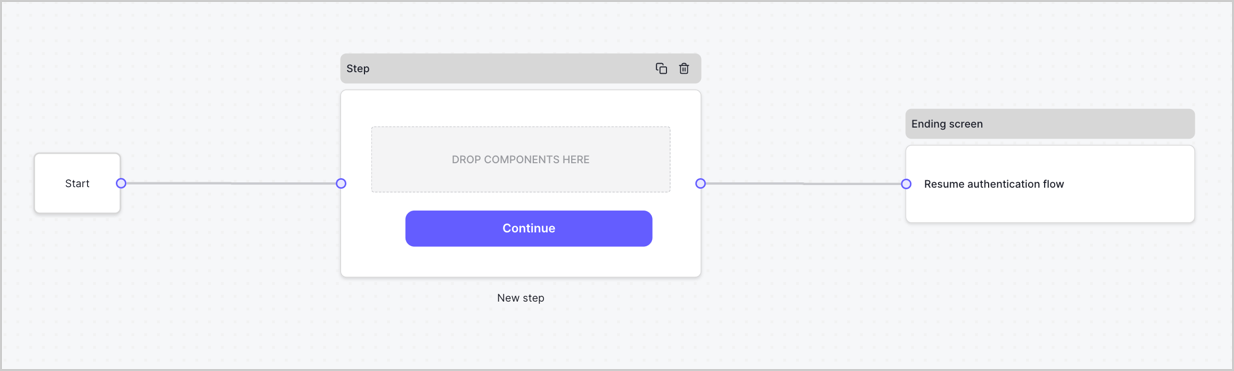
By default, a new form contains a Start node, a Step node, and an Ending screen node.
<Frame>
  <img src="https://mintcdn.com/docs-dev-update-explain-log-stream-pause/Uo1yyDbeRXNFrkgg/docs/images/cdy7uua7fh8z/2TZ9jSjgEcARFpULI6hz4R/a4319a1bd482f2ee5cc23100fdb2f42c/New-form-Forms-for-action-use-case.png?fit=max&auto=format&n=Uo1yyDbeRXNFrkgg&q=85&s=0249b061b57ef600274bac1d3124e19e" alt="Dashboard > Forms > Use Cases > Form" data-og-width="1234" width="1234" data-og-height="371" height="371" data-path="docs/images/cdy7uua7fh8z/2TZ9jSjgEcARFpULI6hz4R/a4319a1bd482f2ee5cc23100fdb2f42c/New-form-Forms-for-action-use-case.png" data-optimize="true" data-opv="3" srcset="https://mintcdn.com/docs-dev-update-explain-log-stream-pause/Uo1yyDbeRXNFrkgg/docs/images/cdy7uua7fh8z/2TZ9jSjgEcARFpULI6hz4R/a4319a1bd482f2ee5cc23100fdb2f42c/New-form-Forms-for-action-use-case.png?w=280&fit=max&auto=format&n=Uo1yyDbeRXNFrkgg&q=85&s=1b6c9be6ff1b91ec2c2480cd51c1234b 280w, https://mintcdn.com/docs-dev-update-explain-log-stream-pause/Uo1yyDbeRXNFrkgg/docs/images/cdy7uua7fh8z/2TZ9jSjgEcARFpULI6hz4R/a4319a1bd482f2ee5cc23100fdb2f42c/New-form-Forms-for-action-use-case.png?w=560&fit=max&auto=format&n=Uo1yyDbeRXNFrkgg&q=85&s=be5cd52654063ee6aebb645d9eeba735 560w, https://mintcdn.com/docs-dev-update-explain-log-stream-pause/Uo1yyDbeRXNFrkgg/docs/images/cdy7uua7fh8z/2TZ9jSjgEcARFpULI6hz4R/a4319a1bd482f2ee5cc23100fdb2f42c/New-form-Forms-for-action-use-case.png?w=840&fit=max&auto=format&n=Uo1yyDbeRXNFrkgg&q=85&s=01b1d5810130c7f9b42dfc839f1c0d2b 840w, https://mintcdn.com/docs-dev-update-explain-log-stream-pause/Uo1yyDbeRXNFrkgg/docs/images/cdy7uua7fh8z/2TZ9jSjgEcARFpULI6hz4R/a4319a1bd482f2ee5cc23100fdb2f42c/New-form-Forms-for-action-use-case.png?w=1100&fit=max&auto=format&n=Uo1yyDbeRXNFrkgg&q=85&s=74b3c325e49040fd89887ac6342f06da 1100w, https://mintcdn.com/docs-dev-update-explain-log-stream-pause/Uo1yyDbeRXNFrkgg/docs/images/cdy7uua7fh8z/2TZ9jSjgEcARFpULI6hz4R/a4319a1bd482f2ee5cc23100fdb2f42c/New-form-Forms-for-action-use-case.png?w=1650&fit=max&auto=format&n=Uo1yyDbeRXNFrkgg&q=85&s=2912eae65c583532eac9dfdd9afeb21a 1650w, https://mintcdn.com/docs-dev-update-explain-log-stream-pause/Uo1yyDbeRXNFrkgg/docs/images/cdy7uua7fh8z/2TZ9jSjgEcARFpULI6hz4R/a4319a1bd482f2ee5cc23100fdb2f42c/New-form-Forms-for-action-use-case.png?w=2500&fit=max&auto=format&n=Uo1yyDbeRXNFrkgg&q=85&s=a273c1afc0e8ca762251e5bbef3b1b87 2500w" />
</Frame>

### Configure the Step node

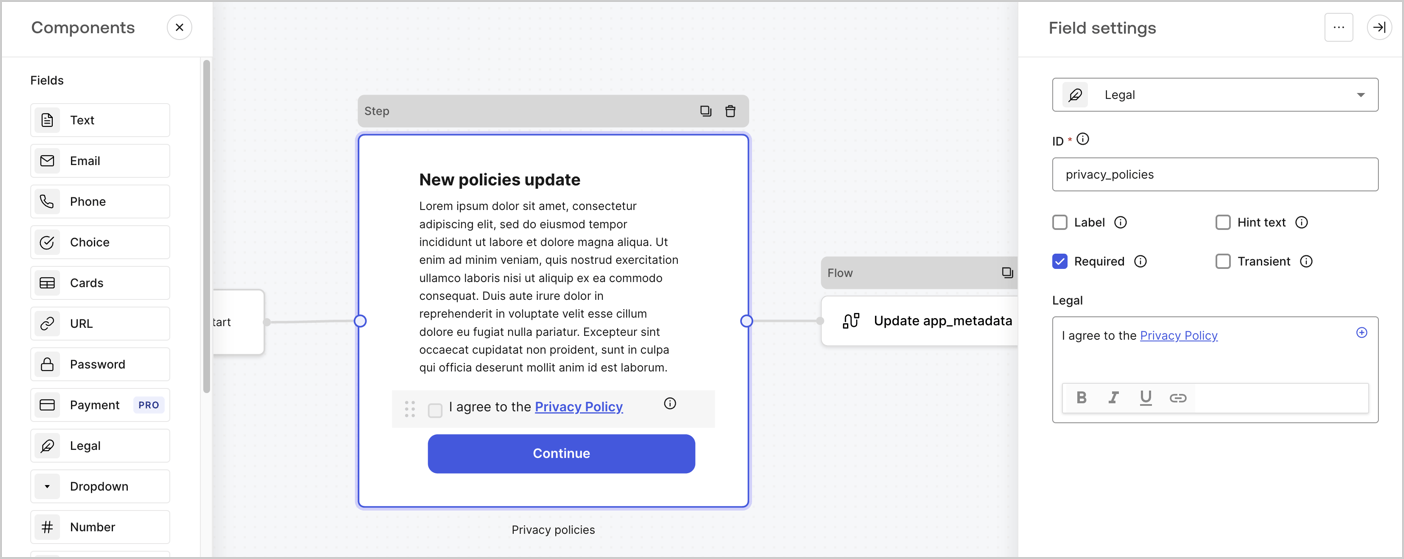
The Step node is the graphical interface visible to users. Add [Fields](/docs/customize/forms/nodes-and-components) to the Step node to collect the new agreement acceptance value by following these steps:

1. Drag a **Rich text** field from the **Components menu** into the **Step** node.

   * **Rich text**: Enter a description of your privacy policies updates.
   * Select **Save**.
2. Drag a **Legal** field into the **Step** node.

   * **ID**: Enter `privacy_policies`.
   * **Required**: Enable the checkbox.
   * **Legal**: Enter `I agree to the Privacy Policy`.
   * Select **Save**.
3. Select **Publish** to save.
<Frame>
  <img src="https://mintcdn.com/docs-dev-update-explain-log-stream-pause/0t_kMd3NgK4DYyrm/docs/images/cdy7uua7fh8z/59zFFjQjAnjogkc2QGIqqJ/0ad66b1b636544122aa4e65968b76c2c/privacy-policy-step-node.png?fit=max&auto=format&n=0t_kMd3NgK4DYyrm&q=85&s=f5db4a66b85da5bb1e1dd61784452389" alt="Dashboard > Actions > Forms > Use case privacy policy step node" data-og-width="1404" width="1404" data-og-height="559" height="559" data-path="docs/images/cdy7uua7fh8z/59zFFjQjAnjogkc2QGIqqJ/0ad66b1b636544122aa4e65968b76c2c/privacy-policy-step-node.png" data-optimize="true" data-opv="3" srcset="https://mintcdn.com/docs-dev-update-explain-log-stream-pause/0t_kMd3NgK4DYyrm/docs/images/cdy7uua7fh8z/59zFFjQjAnjogkc2QGIqqJ/0ad66b1b636544122aa4e65968b76c2c/privacy-policy-step-node.png?w=280&fit=max&auto=format&n=0t_kMd3NgK4DYyrm&q=85&s=9a6db1c052d3083a55724bbef1ce14d1 280w, https://mintcdn.com/docs-dev-update-explain-log-stream-pause/0t_kMd3NgK4DYyrm/docs/images/cdy7uua7fh8z/59zFFjQjAnjogkc2QGIqqJ/0ad66b1b636544122aa4e65968b76c2c/privacy-policy-step-node.png?w=560&fit=max&auto=format&n=0t_kMd3NgK4DYyrm&q=85&s=0b8873ad0cd7ed0d19f97f915f477f17 560w, https://mintcdn.com/docs-dev-update-explain-log-stream-pause/0t_kMd3NgK4DYyrm/docs/images/cdy7uua7fh8z/59zFFjQjAnjogkc2QGIqqJ/0ad66b1b636544122aa4e65968b76c2c/privacy-policy-step-node.png?w=840&fit=max&auto=format&n=0t_kMd3NgK4DYyrm&q=85&s=fbbe0b56deead83baeea0a0e1171d129 840w, https://mintcdn.com/docs-dev-update-explain-log-stream-pause/0t_kMd3NgK4DYyrm/docs/images/cdy7uua7fh8z/59zFFjQjAnjogkc2QGIqqJ/0ad66b1b636544122aa4e65968b76c2c/privacy-policy-step-node.png?w=1100&fit=max&auto=format&n=0t_kMd3NgK4DYyrm&q=85&s=755567b16666afeaa72576d54edaad72 1100w, https://mintcdn.com/docs-dev-update-explain-log-stream-pause/0t_kMd3NgK4DYyrm/docs/images/cdy7uua7fh8z/59zFFjQjAnjogkc2QGIqqJ/0ad66b1b636544122aa4e65968b76c2c/privacy-policy-step-node.png?w=1650&fit=max&auto=format&n=0t_kMd3NgK4DYyrm&q=85&s=35c7efd90562e1d4a5be7810d38e8136 1650w, https://mintcdn.com/docs-dev-update-explain-log-stream-pause/0t_kMd3NgK4DYyrm/docs/images/cdy7uua7fh8z/59zFFjQjAnjogkc2QGIqqJ/0ad66b1b636544122aa4e65968b76c2c/privacy-policy-step-node.png?w=2500&fit=max&auto=format&n=0t_kMd3NgK4DYyrm&q=85&s=ee9bd37658da42222df56c1b470dafc4 2500w" />
</Frame>

### Configure the Flow node

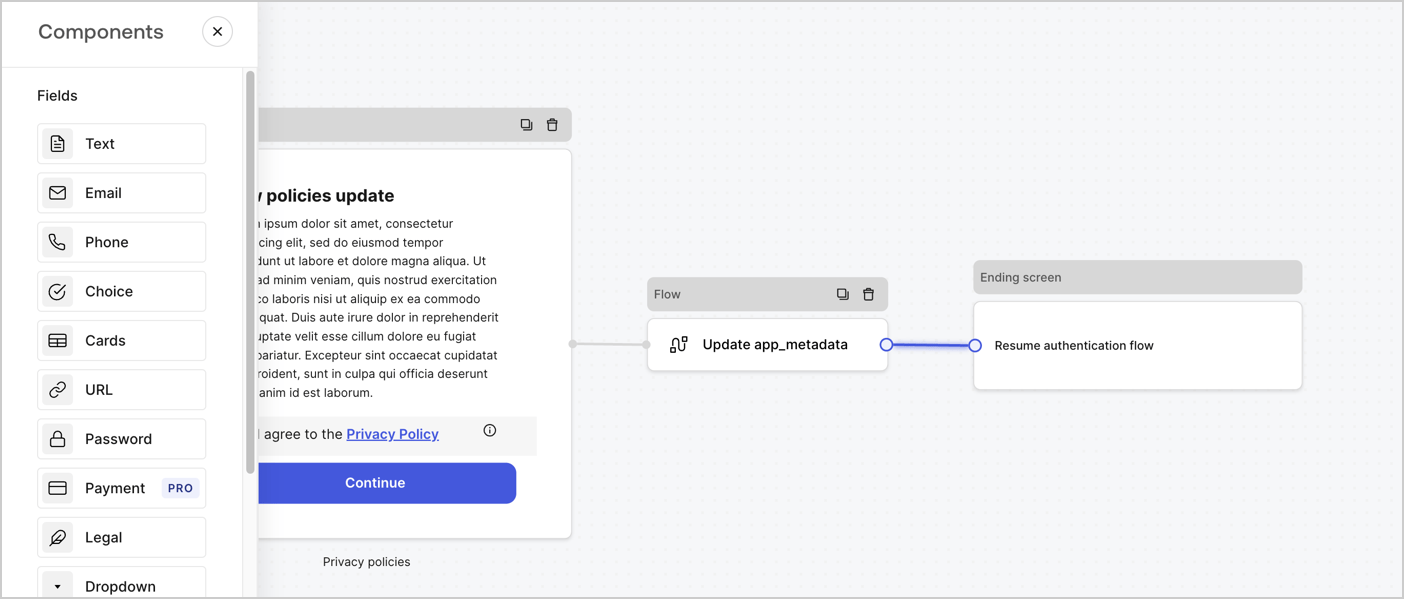
Add a **Flow** node after the **Step** node to update the `app_metadata` and resume the authentication flow by following these steps:

1. Select **Flow** from the bottom of the Form editor.
2. Remove the existing link between the **Step** and **Ending Screen** nodes.
3. Select the new **Flow** > **Click to add a flow** > **Create a new flow.**

   * Enter `Update app_metadata` in the **Name** field.
   * Select **Create**.
   * Select **Save**.
4. Link the **Flow** node to the **Step** and **Ending Screen** nodes as pictured below.
5. Select **Publish** to save.
<Frame>
  <img src="https://mintcdn.com/docs-dev-update-explain-log-stream-pause/XXyEcRdaHQRqAede/docs/images/cdy7uua7fh8z/6YIkzm7SrpM9LW76AXuRzh/353c518fe82bbaa440836da1d83596d6/link-policies.png?fit=max&auto=format&n=XXyEcRdaHQRqAede&q=85&s=36488719d71bd3fead7ab78531b4265c" alt="Dashboard > Actions > Forms > Form" data-og-width="1404" width="1404" data-og-height="599" height="599" data-path="docs/images/cdy7uua7fh8z/6YIkzm7SrpM9LW76AXuRzh/353c518fe82bbaa440836da1d83596d6/link-policies.png" data-optimize="true" data-opv="3" srcset="https://mintcdn.com/docs-dev-update-explain-log-stream-pause/XXyEcRdaHQRqAede/docs/images/cdy7uua7fh8z/6YIkzm7SrpM9LW76AXuRzh/353c518fe82bbaa440836da1d83596d6/link-policies.png?w=280&fit=max&auto=format&n=XXyEcRdaHQRqAede&q=85&s=8d46fa5165bf33f4487b74ecedcf8ca1 280w, https://mintcdn.com/docs-dev-update-explain-log-stream-pause/XXyEcRdaHQRqAede/docs/images/cdy7uua7fh8z/6YIkzm7SrpM9LW76AXuRzh/353c518fe82bbaa440836da1d83596d6/link-policies.png?w=560&fit=max&auto=format&n=XXyEcRdaHQRqAede&q=85&s=0b68ea0e6703c7eb3c41d3c74b9f5005 560w, https://mintcdn.com/docs-dev-update-explain-log-stream-pause/XXyEcRdaHQRqAede/docs/images/cdy7uua7fh8z/6YIkzm7SrpM9LW76AXuRzh/353c518fe82bbaa440836da1d83596d6/link-policies.png?w=840&fit=max&auto=format&n=XXyEcRdaHQRqAede&q=85&s=90d0b254684dd857acbf59d2e1dfb74b 840w, https://mintcdn.com/docs-dev-update-explain-log-stream-pause/XXyEcRdaHQRqAede/docs/images/cdy7uua7fh8z/6YIkzm7SrpM9LW76AXuRzh/353c518fe82bbaa440836da1d83596d6/link-policies.png?w=1100&fit=max&auto=format&n=XXyEcRdaHQRqAede&q=85&s=0d9f99ba505fc701afb9307065bac0c5 1100w, https://mintcdn.com/docs-dev-update-explain-log-stream-pause/XXyEcRdaHQRqAede/docs/images/cdy7uua7fh8z/6YIkzm7SrpM9LW76AXuRzh/353c518fe82bbaa440836da1d83596d6/link-policies.png?w=1650&fit=max&auto=format&n=XXyEcRdaHQRqAede&q=85&s=bdc9974454b707525d38cf9d793aa22f 1650w, https://mintcdn.com/docs-dev-update-explain-log-stream-pause/XXyEcRdaHQRqAede/docs/images/cdy7uua7fh8z/6YIkzm7SrpM9LW76AXuRzh/353c518fe82bbaa440836da1d83596d6/link-policies.png?w=2500&fit=max&auto=format&n=XXyEcRdaHQRqAede&q=85&s=01295d3a5f12d5b59536c660ca91bdd2 2500w" />
</Frame>

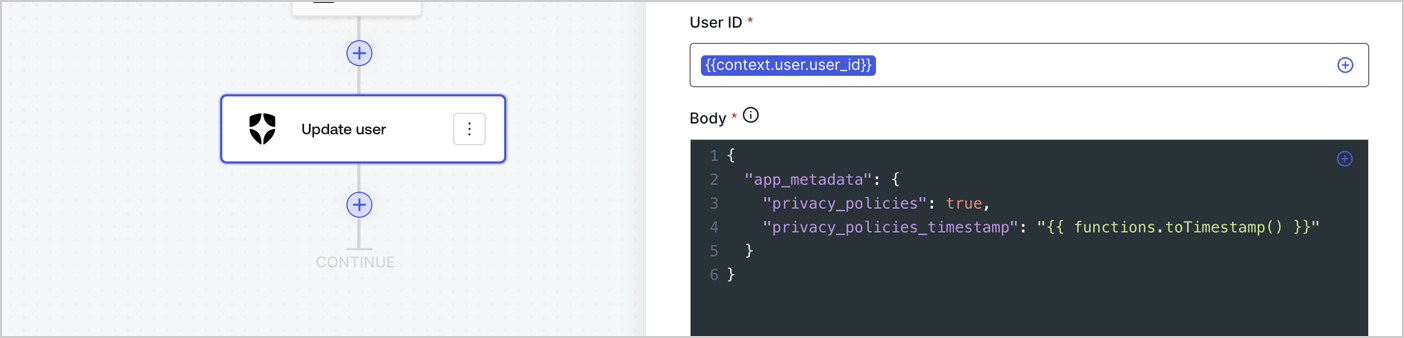
Add an Auth0 Update user action to the flow by following these steps:

1. Select the **Flow** **Update app\_metadata** > **Edit flow** to open the Flow editor in a new tab.
2. Below the StartAction, select the **+** icon to add an **Update user** action. Complete the fields below, then select **Save** to continue.

   * **Connection**: Select from the dropdown the Vault connection to your M2M application.

   * **User ID**: Enter `{{context.user.user_id}}`.

   * **Body**: Copy and paste the following code to update the app\_metadata with the privacy\_policies and privacy\_policies\_timestamp properties.

     ```text lines theme={null}
     {
       "app_metadata": {
         "privacy_policies": true,
         "privacy_policies_timestamp": "{{ functions.toTimestamp() }}"
       }
     }
     ```

   * Select **Save**.
3. Select **Publish** to save.
<Frame>
  <img src="https://mintcdn.com/docs-dev-update-explain-log-stream-pause/PedDhzNJbIgV3FWI/docs/images/cdy7uua7fh8z/CvMNIwWrOUwaFW4X3G28p/1fb70ae57a20749d9ffaaba8dc0b7e26/update-user-privacy.png?fit=max&auto=format&n=PedDhzNJbIgV3FWI&q=85&s=caf792245109b895be8cd76445055979" alt="Dashboard > Actions > Forms > User case privacy policy code" data-og-width="1404" width="1404" data-og-height="338" height="338" data-path="docs/images/cdy7uua7fh8z/CvMNIwWrOUwaFW4X3G28p/1fb70ae57a20749d9ffaaba8dc0b7e26/update-user-privacy.png" data-optimize="true" data-opv="3" srcset="https://mintcdn.com/docs-dev-update-explain-log-stream-pause/PedDhzNJbIgV3FWI/docs/images/cdy7uua7fh8z/CvMNIwWrOUwaFW4X3G28p/1fb70ae57a20749d9ffaaba8dc0b7e26/update-user-privacy.png?w=280&fit=max&auto=format&n=PedDhzNJbIgV3FWI&q=85&s=956225275a21a2a67fd98d276c076448 280w, https://mintcdn.com/docs-dev-update-explain-log-stream-pause/PedDhzNJbIgV3FWI/docs/images/cdy7uua7fh8z/CvMNIwWrOUwaFW4X3G28p/1fb70ae57a20749d9ffaaba8dc0b7e26/update-user-privacy.png?w=560&fit=max&auto=format&n=PedDhzNJbIgV3FWI&q=85&s=b06f6110b736d4c6ea0252c4327b6e90 560w, https://mintcdn.com/docs-dev-update-explain-log-stream-pause/PedDhzNJbIgV3FWI/docs/images/cdy7uua7fh8z/CvMNIwWrOUwaFW4X3G28p/1fb70ae57a20749d9ffaaba8dc0b7e26/update-user-privacy.png?w=840&fit=max&auto=format&n=PedDhzNJbIgV3FWI&q=85&s=b35493f03158175d23314ae28b2c44b4 840w, https://mintcdn.com/docs-dev-update-explain-log-stream-pause/PedDhzNJbIgV3FWI/docs/images/cdy7uua7fh8z/CvMNIwWrOUwaFW4X3G28p/1fb70ae57a20749d9ffaaba8dc0b7e26/update-user-privacy.png?w=1100&fit=max&auto=format&n=PedDhzNJbIgV3FWI&q=85&s=889d16e317ddcf7ac2d4801aea5e5f83 1100w, https://mintcdn.com/docs-dev-update-explain-log-stream-pause/PedDhzNJbIgV3FWI/docs/images/cdy7uua7fh8z/CvMNIwWrOUwaFW4X3G28p/1fb70ae57a20749d9ffaaba8dc0b7e26/update-user-privacy.png?w=1650&fit=max&auto=format&n=PedDhzNJbIgV3FWI&q=85&s=4ba33f58273000ed576f566c83999849 1650w, https://mintcdn.com/docs-dev-update-explain-log-stream-pause/PedDhzNJbIgV3FWI/docs/images/cdy7uua7fh8z/CvMNIwWrOUwaFW4X3G28p/1fb70ae57a20749d9ffaaba8dc0b7e26/update-user-privacy.png?w=2500&fit=max&auto=format&n=PedDhzNJbIgV3FWI&q=85&s=c37018a4d0d26aa2a2c77ae27d989fff 2500w" />
</Frame>

<Callout icon="file-lines" color="#0EA5E9" iconType="regular">
  The flow **Update app\_metadata** adds a `privacy_policies true` value to the app`_metadata` object and also generates a timestamp with a [helper function.](/docs/customize/forms/variables)
</Callout>

## Retrieve the form render code

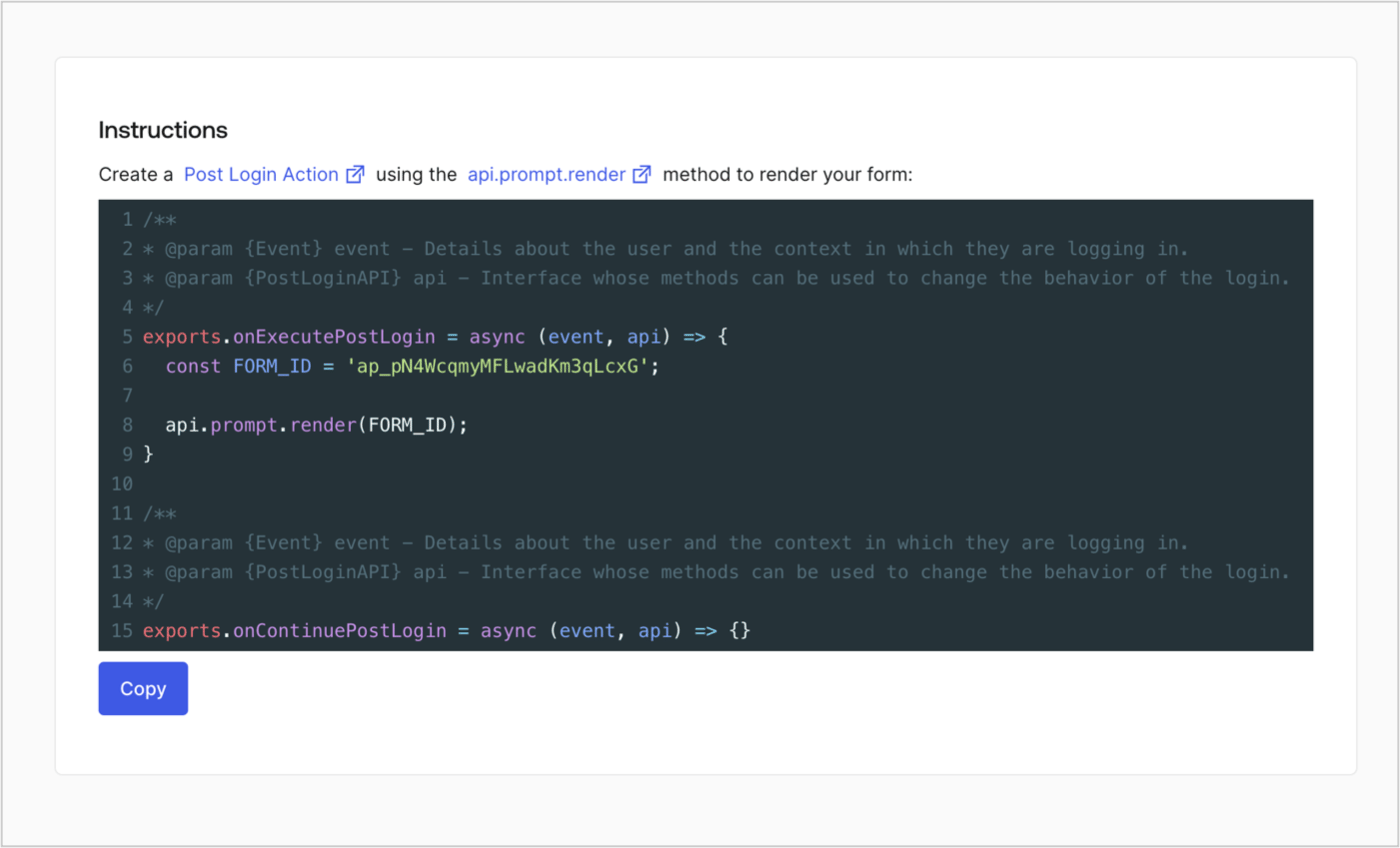
Retrieve your form render code to visually render the form with a custom Post Login Action by following these steps:

* From the Form editor, select **`<> Render`**.
* Select **Copy**.
<Frame>
  <img src="https://mintcdn.com/docs-dev-update-explain-log-stream-pause/CDRwnVpzu1sRpn28/docs/images/cdy7uua7fh8z/2EIUzc539sq9lwoTKbjoJv/496a864c0fc44a782c9cadca119dbfb0/embed.png?fit=max&auto=format&n=CDRwnVpzu1sRpn28&q=85&s=b59b4a497932164b7236eddbf253966d" alt="Dashboard > Actions > Forms > Form > Embed" data-og-width="1400" width="1400" data-og-height="848" height="848" data-path="docs/images/cdy7uua7fh8z/2EIUzc539sq9lwoTKbjoJv/496a864c0fc44a782c9cadca119dbfb0/embed.png" data-optimize="true" data-opv="3" srcset="https://mintcdn.com/docs-dev-update-explain-log-stream-pause/CDRwnVpzu1sRpn28/docs/images/cdy7uua7fh8z/2EIUzc539sq9lwoTKbjoJv/496a864c0fc44a782c9cadca119dbfb0/embed.png?w=280&fit=max&auto=format&n=CDRwnVpzu1sRpn28&q=85&s=fb8b1faf9c99777f52f86394887d8437 280w, https://mintcdn.com/docs-dev-update-explain-log-stream-pause/CDRwnVpzu1sRpn28/docs/images/cdy7uua7fh8z/2EIUzc539sq9lwoTKbjoJv/496a864c0fc44a782c9cadca119dbfb0/embed.png?w=560&fit=max&auto=format&n=CDRwnVpzu1sRpn28&q=85&s=6abbffdf957727d5f534608efaac4590 560w, https://mintcdn.com/docs-dev-update-explain-log-stream-pause/CDRwnVpzu1sRpn28/docs/images/cdy7uua7fh8z/2EIUzc539sq9lwoTKbjoJv/496a864c0fc44a782c9cadca119dbfb0/embed.png?w=840&fit=max&auto=format&n=CDRwnVpzu1sRpn28&q=85&s=a82cb2ba4d82681c113a0e0b12e3cd6c 840w, https://mintcdn.com/docs-dev-update-explain-log-stream-pause/CDRwnVpzu1sRpn28/docs/images/cdy7uua7fh8z/2EIUzc539sq9lwoTKbjoJv/496a864c0fc44a782c9cadca119dbfb0/embed.png?w=1100&fit=max&auto=format&n=CDRwnVpzu1sRpn28&q=85&s=a23f0ade061521f66526fe60db5d7221 1100w, https://mintcdn.com/docs-dev-update-explain-log-stream-pause/CDRwnVpzu1sRpn28/docs/images/cdy7uua7fh8z/2EIUzc539sq9lwoTKbjoJv/496a864c0fc44a782c9cadca119dbfb0/embed.png?w=1650&fit=max&auto=format&n=CDRwnVpzu1sRpn28&q=85&s=76a4656c69f2c3e2aa651840ddebd59a 1650w, https://mintcdn.com/docs-dev-update-explain-log-stream-pause/CDRwnVpzu1sRpn28/docs/images/cdy7uua7fh8z/2EIUzc539sq9lwoTKbjoJv/496a864c0fc44a782c9cadca119dbfb0/embed.png?w=2500&fit=max&auto=format&n=CDRwnVpzu1sRpn28&q=85&s=288697d2493b7006466e6b2c498dd360 2500w" />
</Frame>

## Create a Post Login Action

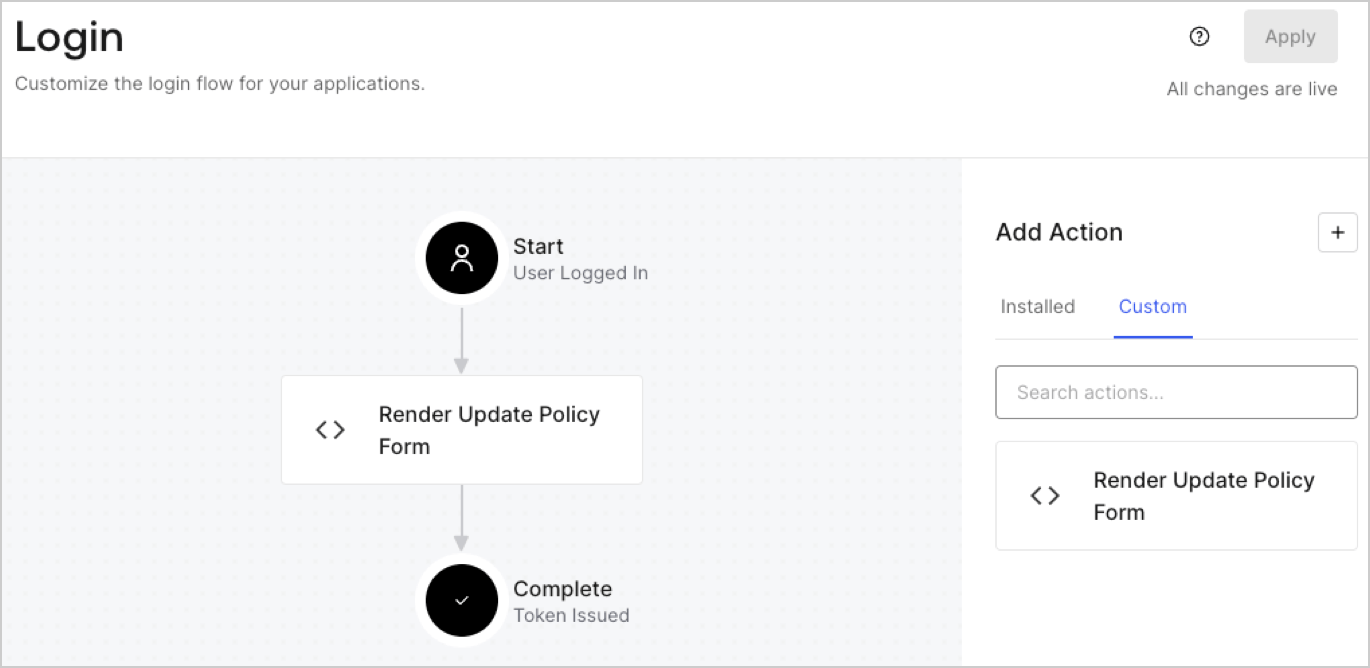
Create a post-login Action to render your form by following these steps:

1. Navigate to **Auth0 Dashboard > Actions > Flows > Login.**
2. Select the **+** icon and Select **Build from scratch**:

   * **Name**: Enter `Render Update Policy Form`.
   * **Trigger**: Select `Login / Post Login`.
   * **Runtime**: Select the recommended version.
3. Select **Create**.

To configure the post-login Action:

1. Delete the existing code from the Code editor.
2. Paste the form render code into the Code editor.
3. Edit the code to define the conditional logic that will render the form.

   ```javascript lines theme={null}
   /**
   * @param {Event} event - Details about the user and the context in which they are logging in.
   * @param {PostLoginAPI} api - Interface whose methods can be used to change the behavior of the login.
   */
   exports.onExecutePostLogin = async (event, api) => {
     const FORM_ID = 'REPLACE_WITH_YOUR_FORM_ID';

     if (event.user.app_metadata.privacy_policies !== true) {
       api.prompt.render(FORM_ID);
     }
   }

   exports.onContinuePostLogin = async (event, api) => { }
   ```

   <Callout icon="file-lines" color="#0EA5E9" iconType="regular">
     The example code above will render the form when a user is missing the app metadata `privacy_policies` property.
   </Callout>
4. Select **Deploy.**
5. Drag and Drop the **Render Update Policy Form** Action to the **Login** flow.
   <Frame>
     <img src="https://mintcdn.com/docs-dev-update-explain-log-stream-pause/QUN0-bxenJFO0jql/docs/images/cdy7uua7fh8z/5TOwDgevZsBqd7yZynUYWU/41ca909dc3007aed4f40ff794a05efa5/postlogin.png?fit=max&auto=format&n=QUN0-bxenJFO0jql&q=85&s=23e72cd43b09944434b4e070f666384f" alt="Dashboard > Forms > Use Case > Render update policy form login action" data-og-width="1370" width="1370" data-og-height="668" height="668" data-path="docs/images/cdy7uua7fh8z/5TOwDgevZsBqd7yZynUYWU/41ca909dc3007aed4f40ff794a05efa5/postlogin.png" data-optimize="true" data-opv="3" srcset="https://mintcdn.com/docs-dev-update-explain-log-stream-pause/QUN0-bxenJFO0jql/docs/images/cdy7uua7fh8z/5TOwDgevZsBqd7yZynUYWU/41ca909dc3007aed4f40ff794a05efa5/postlogin.png?w=280&fit=max&auto=format&n=QUN0-bxenJFO0jql&q=85&s=6306478132709ce198d2e280a819ceb6 280w, https://mintcdn.com/docs-dev-update-explain-log-stream-pause/QUN0-bxenJFO0jql/docs/images/cdy7uua7fh8z/5TOwDgevZsBqd7yZynUYWU/41ca909dc3007aed4f40ff794a05efa5/postlogin.png?w=560&fit=max&auto=format&n=QUN0-bxenJFO0jql&q=85&s=e6bfce91bab39eadcae52545149660d5 560w, https://mintcdn.com/docs-dev-update-explain-log-stream-pause/QUN0-bxenJFO0jql/docs/images/cdy7uua7fh8z/5TOwDgevZsBqd7yZynUYWU/41ca909dc3007aed4f40ff794a05efa5/postlogin.png?w=840&fit=max&auto=format&n=QUN0-bxenJFO0jql&q=85&s=e50cce094c7b55147527066ceaa8286b 840w, https://mintcdn.com/docs-dev-update-explain-log-stream-pause/QUN0-bxenJFO0jql/docs/images/cdy7uua7fh8z/5TOwDgevZsBqd7yZynUYWU/41ca909dc3007aed4f40ff794a05efa5/postlogin.png?w=1100&fit=max&auto=format&n=QUN0-bxenJFO0jql&q=85&s=5a314b2dd3053753a6aff8ba9f0301a7 1100w, https://mintcdn.com/docs-dev-update-explain-log-stream-pause/QUN0-bxenJFO0jql/docs/images/cdy7uua7fh8z/5TOwDgevZsBqd7yZynUYWU/41ca909dc3007aed4f40ff794a05efa5/postlogin.png?w=1650&fit=max&auto=format&n=QUN0-bxenJFO0jql&q=85&s=416c47f0a1e0a0a905934b702378bbb5 1650w, https://mintcdn.com/docs-dev-update-explain-log-stream-pause/QUN0-bxenJFO0jql/docs/images/cdy7uua7fh8z/5TOwDgevZsBqd7yZynUYWU/41ca909dc3007aed4f40ff794a05efa5/postlogin.png?w=2500&fit=max&auto=format&n=QUN0-bxenJFO0jql&q=85&s=56a928e91c4e433bd16d589e49220e69 2500w" />
   </Frame>
6. Select **Apply.**

### Test implementation

Test the implementation by following these steps:

1. Log in with an existing user whose app`_metadata` attribute `privacy_policies` does not have a value.
2. The post-login Action in the Login flow will render the form and prompt for acceptance.
3. Select **Auth0 Dashboard > User Management > Users,** locate the user and verify that the `app_metadata` attribute `privacy_policies` contains a `true` value and a timestamp.
