> ## Documentation Index
> Fetch the complete documentation index at: https://docs-dev-update-explain-log-stream-pause.mintlify.site/llms.txt
> Use this file to discover all available pages before exploring further.

> Learn how to configure a progressive profile form using Forms for Actions

# Use Cases: Configure a progressive profile form using Forms

<Card title="Before you start">
  1. Create a [Machine-to-Machine Application](/docs/get-started/auth0-overview/create-applications/machine-to-machine-apps) with the following scopes enabled:

  * `read:users`
  * `update:users`
  * `create:users`
  * `read:users_app_metadata`
  * `update:users_app_metadata`
  * `create:users_app_metadata`

  2. Add a [Vault connection](/docs/customize/forms/vault) using the M2M application credentials.
</Card>

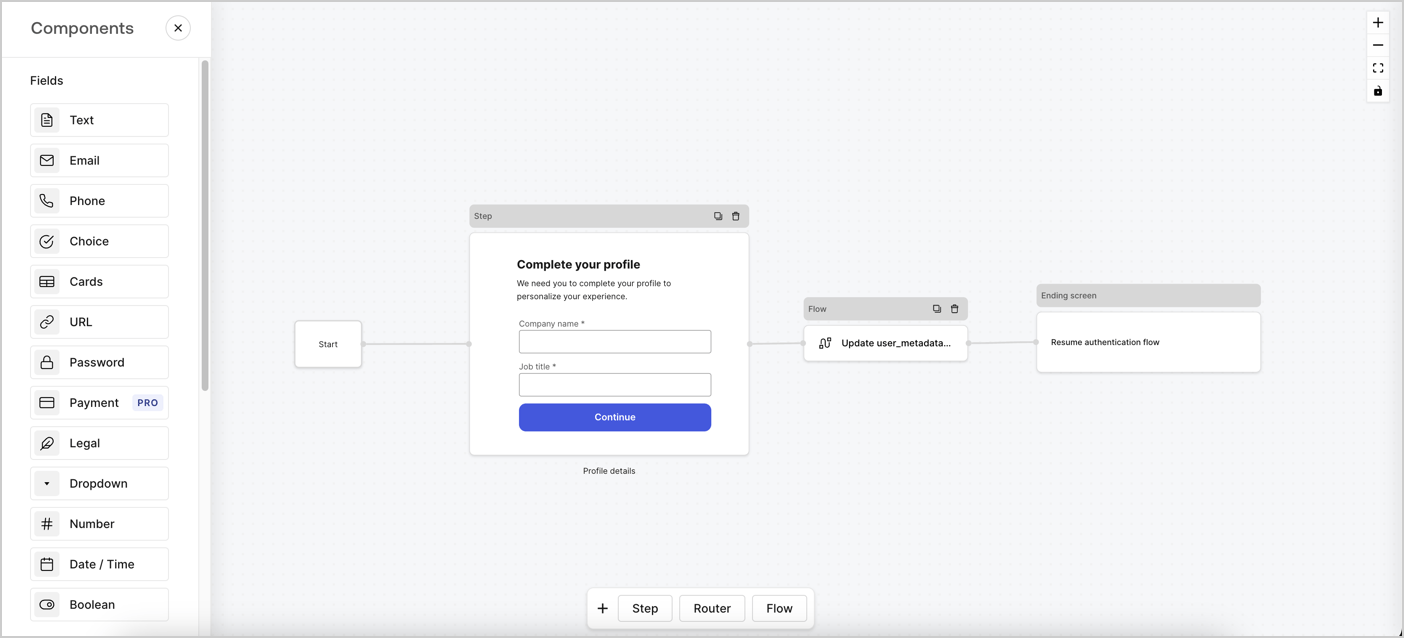
Forms for Actions allows you to create progressive profiling flows to decide when to prompt users to collect missing information, such as company name and job title, and store them as `user_metadata` attributes.
<Frame>
  <img src="https://mintcdn.com/docs-dev-update-explain-log-stream-pause/zKVQSb-kCbV_92cL/docs/images/cdy7uua7fh8z/xUx9YmnHvnAqL19JvNtNP/60dae88f893d4ebe8e3523421e960596/Progressive-profle-overview.png?fit=max&auto=format&n=zKVQSb-kCbV_92cL&q=85&s=86c2a534333615bc2b50859a75e97c9b" alt="Dashboard > Actions > Forms > Form" data-og-width="1404" width="1404" data-og-height="638" height="638" data-path="docs/images/cdy7uua7fh8z/xUx9YmnHvnAqL19JvNtNP/60dae88f893d4ebe8e3523421e960596/Progressive-profle-overview.png" data-optimize="true" data-opv="3" srcset="https://mintcdn.com/docs-dev-update-explain-log-stream-pause/zKVQSb-kCbV_92cL/docs/images/cdy7uua7fh8z/xUx9YmnHvnAqL19JvNtNP/60dae88f893d4ebe8e3523421e960596/Progressive-profle-overview.png?w=280&fit=max&auto=format&n=zKVQSb-kCbV_92cL&q=85&s=2219f8b0191e179c298480855812851c 280w, https://mintcdn.com/docs-dev-update-explain-log-stream-pause/zKVQSb-kCbV_92cL/docs/images/cdy7uua7fh8z/xUx9YmnHvnAqL19JvNtNP/60dae88f893d4ebe8e3523421e960596/Progressive-profle-overview.png?w=560&fit=max&auto=format&n=zKVQSb-kCbV_92cL&q=85&s=d2bfc6ca8afa26ea050e9d94773eb5f5 560w, https://mintcdn.com/docs-dev-update-explain-log-stream-pause/zKVQSb-kCbV_92cL/docs/images/cdy7uua7fh8z/xUx9YmnHvnAqL19JvNtNP/60dae88f893d4ebe8e3523421e960596/Progressive-profle-overview.png?w=840&fit=max&auto=format&n=zKVQSb-kCbV_92cL&q=85&s=4c67ddd489bb26da9f1574aebebb4159 840w, https://mintcdn.com/docs-dev-update-explain-log-stream-pause/zKVQSb-kCbV_92cL/docs/images/cdy7uua7fh8z/xUx9YmnHvnAqL19JvNtNP/60dae88f893d4ebe8e3523421e960596/Progressive-profle-overview.png?w=1100&fit=max&auto=format&n=zKVQSb-kCbV_92cL&q=85&s=0a09f1bdf08bdb641c9c250d5e7cd665 1100w, https://mintcdn.com/docs-dev-update-explain-log-stream-pause/zKVQSb-kCbV_92cL/docs/images/cdy7uua7fh8z/xUx9YmnHvnAqL19JvNtNP/60dae88f893d4ebe8e3523421e960596/Progressive-profle-overview.png?w=1650&fit=max&auto=format&n=zKVQSb-kCbV_92cL&q=85&s=f1ac2a330b450585f3bce2d7fd018c2d 1650w, https://mintcdn.com/docs-dev-update-explain-log-stream-pause/zKVQSb-kCbV_92cL/docs/images/cdy7uua7fh8z/xUx9YmnHvnAqL19JvNtNP/60dae88f893d4ebe8e3523421e960596/Progressive-profle-overview.png?w=2500&fit=max&auto=format&n=zKVQSb-kCbV_92cL&q=85&s=db871eaaffc4ee6d1d2f6846dd944e54 2500w" />
</Frame>

The sections below outline how you can create a progressive profile form using nodes and flows, along with steps for adding your form to a [Post Login Action](/docs/customize/actions/explore-triggers/signup-and-login-triggers/login-trigger).

## Create a form from scratch

Follow these steps to create a form to gather information:

1. Open the Form editor by selecting **Auth0 Dashboard > Actions > Forms.**
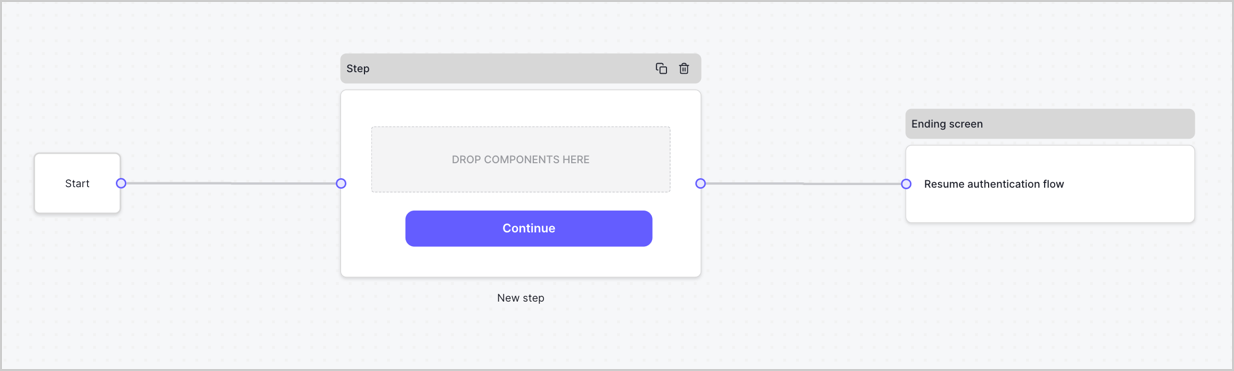
2. Select **Create Form** > **Start from scratch**.

By default, a new form contains a Start node, a Step node, and an Ending screen node.
<Frame>
  <img src="https://mintcdn.com/docs-dev-update-explain-log-stream-pause/Uo1yyDbeRXNFrkgg/docs/images/cdy7uua7fh8z/2TZ9jSjgEcARFpULI6hz4R/a4319a1bd482f2ee5cc23100fdb2f42c/New-form-Forms-for-action-use-case.png?fit=max&auto=format&n=Uo1yyDbeRXNFrkgg&q=85&s=0249b061b57ef600274bac1d3124e19e" alt="Dashboard > Forms > Use Cases > Form" data-og-width="1234" width="1234" data-og-height="371" height="371" data-path="docs/images/cdy7uua7fh8z/2TZ9jSjgEcARFpULI6hz4R/a4319a1bd482f2ee5cc23100fdb2f42c/New-form-Forms-for-action-use-case.png" data-optimize="true" data-opv="3" srcset="https://mintcdn.com/docs-dev-update-explain-log-stream-pause/Uo1yyDbeRXNFrkgg/docs/images/cdy7uua7fh8z/2TZ9jSjgEcARFpULI6hz4R/a4319a1bd482f2ee5cc23100fdb2f42c/New-form-Forms-for-action-use-case.png?w=280&fit=max&auto=format&n=Uo1yyDbeRXNFrkgg&q=85&s=1b6c9be6ff1b91ec2c2480cd51c1234b 280w, https://mintcdn.com/docs-dev-update-explain-log-stream-pause/Uo1yyDbeRXNFrkgg/docs/images/cdy7uua7fh8z/2TZ9jSjgEcARFpULI6hz4R/a4319a1bd482f2ee5cc23100fdb2f42c/New-form-Forms-for-action-use-case.png?w=560&fit=max&auto=format&n=Uo1yyDbeRXNFrkgg&q=85&s=be5cd52654063ee6aebb645d9eeba735 560w, https://mintcdn.com/docs-dev-update-explain-log-stream-pause/Uo1yyDbeRXNFrkgg/docs/images/cdy7uua7fh8z/2TZ9jSjgEcARFpULI6hz4R/a4319a1bd482f2ee5cc23100fdb2f42c/New-form-Forms-for-action-use-case.png?w=840&fit=max&auto=format&n=Uo1yyDbeRXNFrkgg&q=85&s=01b1d5810130c7f9b42dfc839f1c0d2b 840w, https://mintcdn.com/docs-dev-update-explain-log-stream-pause/Uo1yyDbeRXNFrkgg/docs/images/cdy7uua7fh8z/2TZ9jSjgEcARFpULI6hz4R/a4319a1bd482f2ee5cc23100fdb2f42c/New-form-Forms-for-action-use-case.png?w=1100&fit=max&auto=format&n=Uo1yyDbeRXNFrkgg&q=85&s=74b3c325e49040fd89887ac6342f06da 1100w, https://mintcdn.com/docs-dev-update-explain-log-stream-pause/Uo1yyDbeRXNFrkgg/docs/images/cdy7uua7fh8z/2TZ9jSjgEcARFpULI6hz4R/a4319a1bd482f2ee5cc23100fdb2f42c/New-form-Forms-for-action-use-case.png?w=1650&fit=max&auto=format&n=Uo1yyDbeRXNFrkgg&q=85&s=2912eae65c583532eac9dfdd9afeb21a 1650w, https://mintcdn.com/docs-dev-update-explain-log-stream-pause/Uo1yyDbeRXNFrkgg/docs/images/cdy7uua7fh8z/2TZ9jSjgEcARFpULI6hz4R/a4319a1bd482f2ee5cc23100fdb2f42c/New-form-Forms-for-action-use-case.png?w=2500&fit=max&auto=format&n=Uo1yyDbeRXNFrkgg&q=85&s=a273c1afc0e8ca762251e5bbef3b1b87 2500w" />
</Frame>

### Configure the Step node

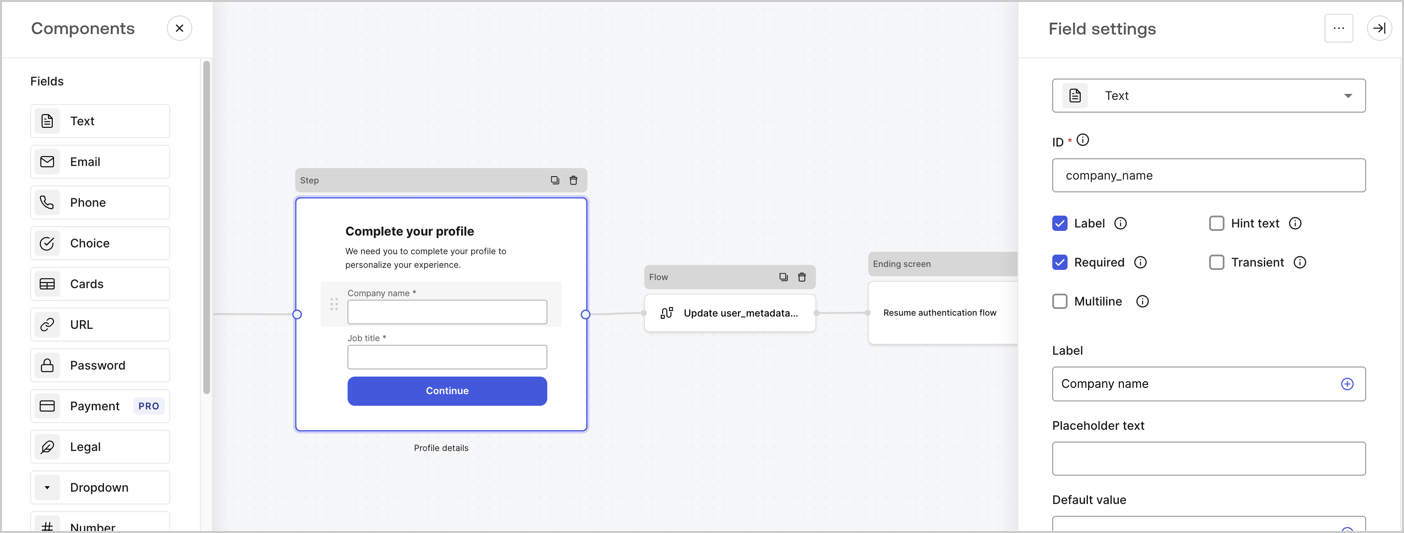
The Step node is the graphical interface visible to users. Add [Fields](/docs/customize/forms/nodes-and-components) to the Step node to collect the user's company name and job title values by following these steps:

1. Drag a **Rich text** field from the **Components menu** into the **Step** node.

   * **Rich text**: Enter a custom message.

     * **Example**: `Complete your profile! We need you to complete your profile to personalize your experience.`
   * Select **Save**.
2. Drag a **Text** field into the **Step** node.

   * **ID**: Enter `company_name`.
   * **Label**: Enable the checkbox.
   * **Label**: Enter `Company name`.
   * **Required**: Enable the checkbox.
   * Select **Save**.
3. Drag a **Text** field into the **Step** node.

   1. **ID**: Enter `job_title`.
   2. **Label**: Enter `Job title`.
   3. **Label**: Enable the checkbox.
   4. **Required**: Enable the checkbox.
   5. Select **Save**.
4. Select **Publish** to save.
<Frame>
  <img src="https://mintcdn.com/docs-dev-update-explain-log-stream-pause/XXyEcRdaHQRqAede/docs/images/cdy7uua7fh8z/6H1lRzwKyYioQyQJ9MtIoM/aa248e92fc028a68a5b92ff361a11644/progressive-profile-step.png?fit=max&auto=format&n=XXyEcRdaHQRqAede&q=85&s=e3bcb40b0ef721ac896e8db0c723f52e" alt="Dashboard > Actions > Forms > Form > Step node" data-og-width="1404" width="1404" data-og-height="533" height="533" data-path="docs/images/cdy7uua7fh8z/6H1lRzwKyYioQyQJ9MtIoM/aa248e92fc028a68a5b92ff361a11644/progressive-profile-step.png" data-optimize="true" data-opv="3" srcset="https://mintcdn.com/docs-dev-update-explain-log-stream-pause/XXyEcRdaHQRqAede/docs/images/cdy7uua7fh8z/6H1lRzwKyYioQyQJ9MtIoM/aa248e92fc028a68a5b92ff361a11644/progressive-profile-step.png?w=280&fit=max&auto=format&n=XXyEcRdaHQRqAede&q=85&s=54f091cb1cc3ddeb687dffaf9a467467 280w, https://mintcdn.com/docs-dev-update-explain-log-stream-pause/XXyEcRdaHQRqAede/docs/images/cdy7uua7fh8z/6H1lRzwKyYioQyQJ9MtIoM/aa248e92fc028a68a5b92ff361a11644/progressive-profile-step.png?w=560&fit=max&auto=format&n=XXyEcRdaHQRqAede&q=85&s=d817b62045c246497336399ec33f1af9 560w, https://mintcdn.com/docs-dev-update-explain-log-stream-pause/XXyEcRdaHQRqAede/docs/images/cdy7uua7fh8z/6H1lRzwKyYioQyQJ9MtIoM/aa248e92fc028a68a5b92ff361a11644/progressive-profile-step.png?w=840&fit=max&auto=format&n=XXyEcRdaHQRqAede&q=85&s=7b94d0dff401dcdaed6c6995f163f3ba 840w, https://mintcdn.com/docs-dev-update-explain-log-stream-pause/XXyEcRdaHQRqAede/docs/images/cdy7uua7fh8z/6H1lRzwKyYioQyQJ9MtIoM/aa248e92fc028a68a5b92ff361a11644/progressive-profile-step.png?w=1100&fit=max&auto=format&n=XXyEcRdaHQRqAede&q=85&s=e051e5edf5b7edd6a23322546fdf8da6 1100w, https://mintcdn.com/docs-dev-update-explain-log-stream-pause/XXyEcRdaHQRqAede/docs/images/cdy7uua7fh8z/6H1lRzwKyYioQyQJ9MtIoM/aa248e92fc028a68a5b92ff361a11644/progressive-profile-step.png?w=1650&fit=max&auto=format&n=XXyEcRdaHQRqAede&q=85&s=53052078d5e26ff8d93d62b456e894e7 1650w, https://mintcdn.com/docs-dev-update-explain-log-stream-pause/XXyEcRdaHQRqAede/docs/images/cdy7uua7fh8z/6H1lRzwKyYioQyQJ9MtIoM/aa248e92fc028a68a5b92ff361a11644/progressive-profile-step.png?w=2500&fit=max&auto=format&n=XXyEcRdaHQRqAede&q=85&s=19e72d4f59cdc58c891e90dd54167e9e 2500w" />
</Frame>

### Configure the flow node

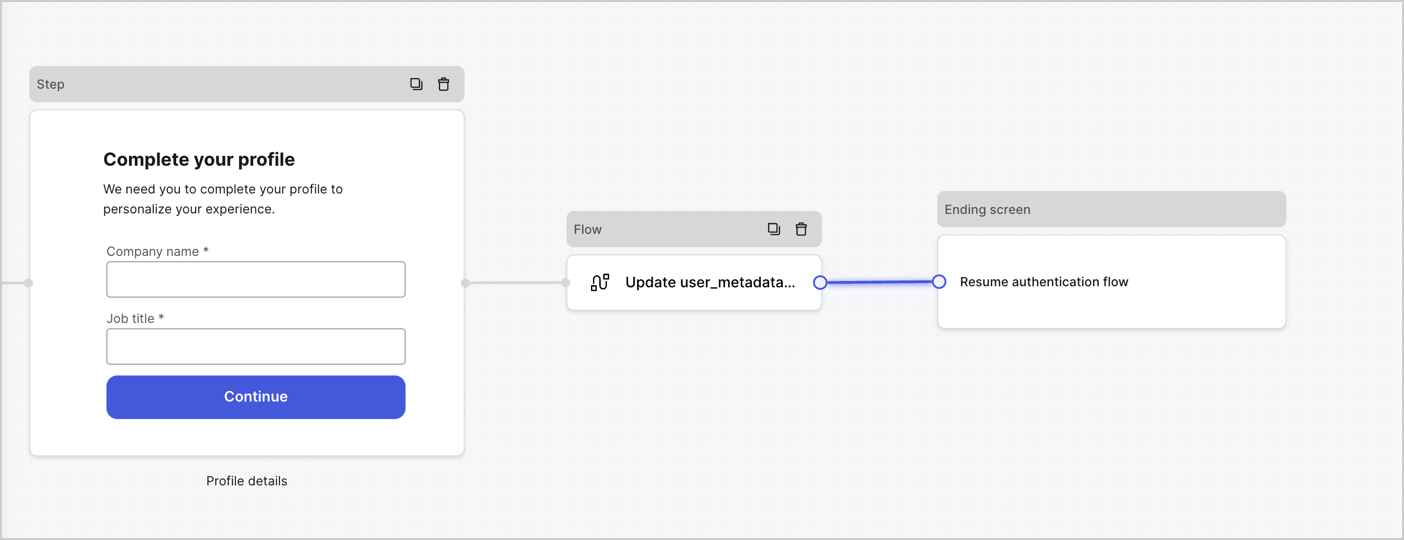
Add a **Flow** node after the **Step** node to update the `user_metadata` and resume the authentication flow by following these steps:

1. Select **Flow** from the bottom of the Form editor.
2. Remove the existing link between the **Step** and **Ending Screen** nodes.
3. Select the new **Flow** > **Click to add a flow** > **Create a new flow.**

   * Enter `Update user_metadata` in the **Name** field.
   * Select **Create**.
   * Select **Save**.
4. Link the **Flow** node to the **Step** and **Ending Screen** nodes as pictured below.
5. Select **Publish** to save.
<Frame>
  <img src="https://mintcdn.com/docs-dev-update-explain-log-stream-pause/0t_kMd3NgK4DYyrm/docs/images/cdy7uua7fh8z/5C91DaWn4LGtJT9BF87ssu/095171d0c452a287c44bfde12fd6d13f/link-nodes.png?fit=max&auto=format&n=0t_kMd3NgK4DYyrm&q=85&s=8f0869f3d6dd8b614efcd7b4959aa479" alt="Dashboard > Actions > Forms > Form" data-og-width="1404" width="1404" data-og-height="540" height="540" data-path="docs/images/cdy7uua7fh8z/5C91DaWn4LGtJT9BF87ssu/095171d0c452a287c44bfde12fd6d13f/link-nodes.png" data-optimize="true" data-opv="3" srcset="https://mintcdn.com/docs-dev-update-explain-log-stream-pause/0t_kMd3NgK4DYyrm/docs/images/cdy7uua7fh8z/5C91DaWn4LGtJT9BF87ssu/095171d0c452a287c44bfde12fd6d13f/link-nodes.png?w=280&fit=max&auto=format&n=0t_kMd3NgK4DYyrm&q=85&s=7731d9bad69ea38835528036cbdde4fa 280w, https://mintcdn.com/docs-dev-update-explain-log-stream-pause/0t_kMd3NgK4DYyrm/docs/images/cdy7uua7fh8z/5C91DaWn4LGtJT9BF87ssu/095171d0c452a287c44bfde12fd6d13f/link-nodes.png?w=560&fit=max&auto=format&n=0t_kMd3NgK4DYyrm&q=85&s=cf827903b8b9a77b0e256edaa7ad7556 560w, https://mintcdn.com/docs-dev-update-explain-log-stream-pause/0t_kMd3NgK4DYyrm/docs/images/cdy7uua7fh8z/5C91DaWn4LGtJT9BF87ssu/095171d0c452a287c44bfde12fd6d13f/link-nodes.png?w=840&fit=max&auto=format&n=0t_kMd3NgK4DYyrm&q=85&s=04198057bc9b92b6e0e0bba83c5b0ecf 840w, https://mintcdn.com/docs-dev-update-explain-log-stream-pause/0t_kMd3NgK4DYyrm/docs/images/cdy7uua7fh8z/5C91DaWn4LGtJT9BF87ssu/095171d0c452a287c44bfde12fd6d13f/link-nodes.png?w=1100&fit=max&auto=format&n=0t_kMd3NgK4DYyrm&q=85&s=526e3f76fcbe85677a4d782e1557a03d 1100w, https://mintcdn.com/docs-dev-update-explain-log-stream-pause/0t_kMd3NgK4DYyrm/docs/images/cdy7uua7fh8z/5C91DaWn4LGtJT9BF87ssu/095171d0c452a287c44bfde12fd6d13f/link-nodes.png?w=1650&fit=max&auto=format&n=0t_kMd3NgK4DYyrm&q=85&s=33be9ab6343c8ae7ed5a9b00036b339f 1650w, https://mintcdn.com/docs-dev-update-explain-log-stream-pause/0t_kMd3NgK4DYyrm/docs/images/cdy7uua7fh8z/5C91DaWn4LGtJT9BF87ssu/095171d0c452a287c44bfde12fd6d13f/link-nodes.png?w=2500&fit=max&auto=format&n=0t_kMd3NgK4DYyrm&q=85&s=796a038f502543ae397ebd3aca2fdaf2 2500w" />
</Frame>

Add an Auth0 Update user action to the flow by following these steps:

1. Select the **Update user\_metadata** flow, then select the **Edit Flow** to open the Flow editor in a new tab.
2. Below the **Start** action, select the **+** icon to add an **Update user** action. Complete the fields below, then select **Save** to continue.

   * **Connection**: Select from the dropdown the Vault connection to your M2M application.

   * **User ID**: Enter `{{context.user.user_id}}`.

   * **Body**: Copy and paste the following code to update the user\_metadata with `job_title` and `company_name` properties.

     ```json lines theme={null}
     {
        "user_metadata": {
           "job_title": "{{fields.job_title}}",
           "company_name": "{{fields.company_name}}"
        }
     }
     ```

   * Select **Save**.
3. Select **Publish** to save.

<Frame>
  <img src="https://mintcdn.com/docs-dev-update-explain-log-stream-pause/QUN0-bxenJFO0jql/docs/images/cdy7uua7fh8z/65Jx4W5oIZJyyvA8z4HqIx/0661b1a8ca6361c54fc4fef07ba59f0b/update-user.png?fit=max&auto=format&n=QUN0-bxenJFO0jql&q=85&s=9ec2a1cfc75da83d2f6889ee3a65c672" alt="Dashboard > Actions > Forms > Flows" data-og-width="1404" width="1404" data-og-height="244" height="244" data-path="docs/images/cdy7uua7fh8z/65Jx4W5oIZJyyvA8z4HqIx/0661b1a8ca6361c54fc4fef07ba59f0b/update-user.png" data-optimize="true" data-opv="3" srcset="https://mintcdn.com/docs-dev-update-explain-log-stream-pause/QUN0-bxenJFO0jql/docs/images/cdy7uua7fh8z/65Jx4W5oIZJyyvA8z4HqIx/0661b1a8ca6361c54fc4fef07ba59f0b/update-user.png?w=280&fit=max&auto=format&n=QUN0-bxenJFO0jql&q=85&s=12f3b902aa1d8676e478cbe4892a1f96 280w, https://mintcdn.com/docs-dev-update-explain-log-stream-pause/QUN0-bxenJFO0jql/docs/images/cdy7uua7fh8z/65Jx4W5oIZJyyvA8z4HqIx/0661b1a8ca6361c54fc4fef07ba59f0b/update-user.png?w=560&fit=max&auto=format&n=QUN0-bxenJFO0jql&q=85&s=93f411ebd48b4e28603953e1970ae2fb 560w, https://mintcdn.com/docs-dev-update-explain-log-stream-pause/QUN0-bxenJFO0jql/docs/images/cdy7uua7fh8z/65Jx4W5oIZJyyvA8z4HqIx/0661b1a8ca6361c54fc4fef07ba59f0b/update-user.png?w=840&fit=max&auto=format&n=QUN0-bxenJFO0jql&q=85&s=d9f18b746310c33381fa9723f2beff52 840w, https://mintcdn.com/docs-dev-update-explain-log-stream-pause/QUN0-bxenJFO0jql/docs/images/cdy7uua7fh8z/65Jx4W5oIZJyyvA8z4HqIx/0661b1a8ca6361c54fc4fef07ba59f0b/update-user.png?w=1100&fit=max&auto=format&n=QUN0-bxenJFO0jql&q=85&s=bb470c80b659a9fba951d4285f87cd29 1100w, https://mintcdn.com/docs-dev-update-explain-log-stream-pause/QUN0-bxenJFO0jql/docs/images/cdy7uua7fh8z/65Jx4W5oIZJyyvA8z4HqIx/0661b1a8ca6361c54fc4fef07ba59f0b/update-user.png?w=1650&fit=max&auto=format&n=QUN0-bxenJFO0jql&q=85&s=02408b3a5110f1de90f66416af4c99b8 1650w, https://mintcdn.com/docs-dev-update-explain-log-stream-pause/QUN0-bxenJFO0jql/docs/images/cdy7uua7fh8z/65Jx4W5oIZJyyvA8z4HqIx/0661b1a8ca6361c54fc4fef07ba59f0b/update-user.png?w=2500&fit=max&auto=format&n=QUN0-bxenJFO0jql&q=85&s=d688b4e320184316bffea4410143c54f 2500w" />
</Frame>

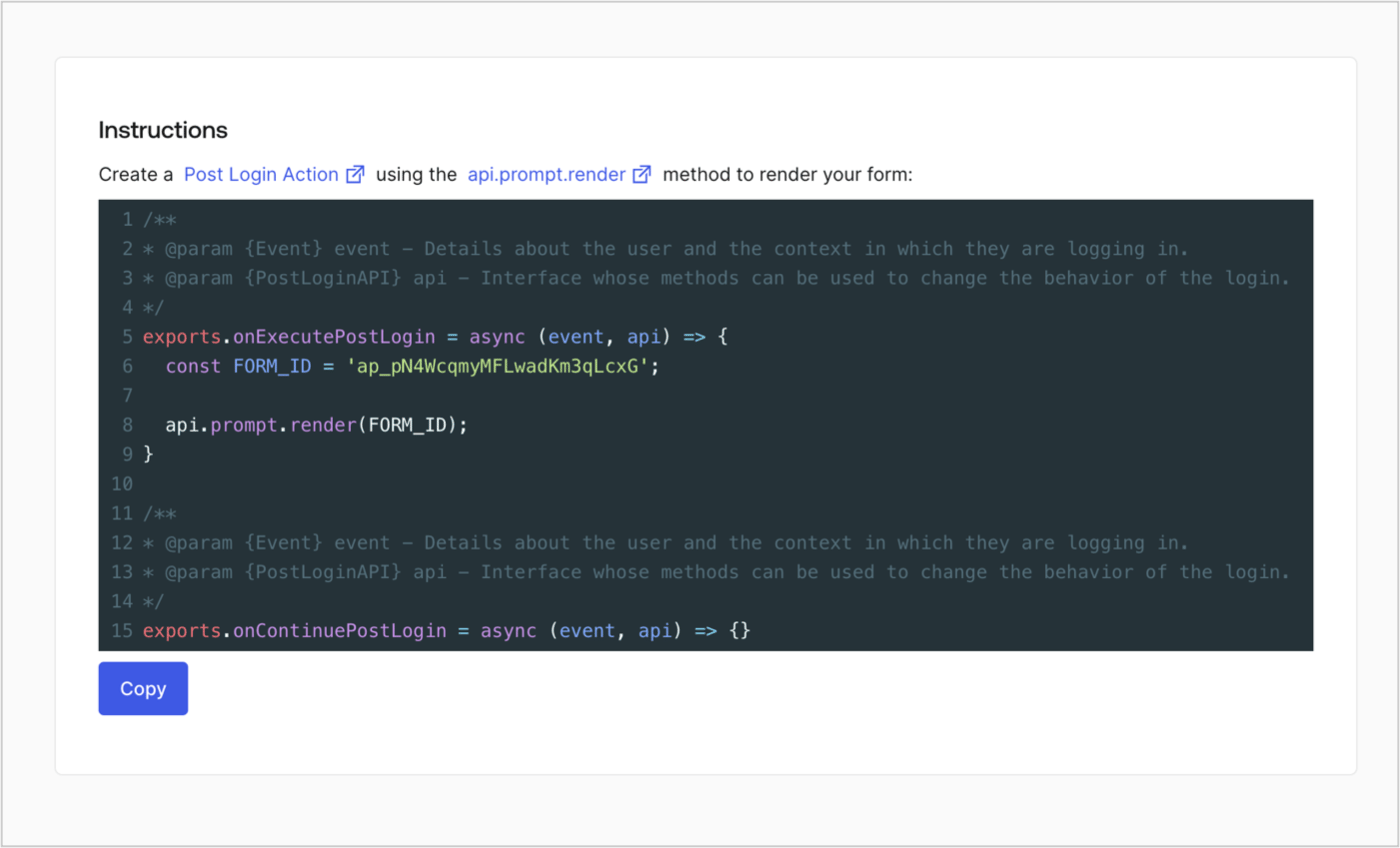
### Retrieve the form render code

Retrieve the form render code to visually render the form with a custom Post Login Action by following these steps:

* From the Form editor, select **`<> Render`**.
* Select **Copy**.
<Frame>
  <img src="https://mintcdn.com/docs-dev-update-explain-log-stream-pause/CDRwnVpzu1sRpn28/docs/images/cdy7uua7fh8z/2EIUzc539sq9lwoTKbjoJv/496a864c0fc44a782c9cadca119dbfb0/embed.png?fit=max&auto=format&n=CDRwnVpzu1sRpn28&q=85&s=b59b4a497932164b7236eddbf253966d" alt="Dashboard > Actions > Forms > Form > Embed" data-og-width="1400" width="1400" data-og-height="848" height="848" data-path="docs/images/cdy7uua7fh8z/2EIUzc539sq9lwoTKbjoJv/496a864c0fc44a782c9cadca119dbfb0/embed.png" data-optimize="true" data-opv="3" srcset="https://mintcdn.com/docs-dev-update-explain-log-stream-pause/CDRwnVpzu1sRpn28/docs/images/cdy7uua7fh8z/2EIUzc539sq9lwoTKbjoJv/496a864c0fc44a782c9cadca119dbfb0/embed.png?w=280&fit=max&auto=format&n=CDRwnVpzu1sRpn28&q=85&s=fb8b1faf9c99777f52f86394887d8437 280w, https://mintcdn.com/docs-dev-update-explain-log-stream-pause/CDRwnVpzu1sRpn28/docs/images/cdy7uua7fh8z/2EIUzc539sq9lwoTKbjoJv/496a864c0fc44a782c9cadca119dbfb0/embed.png?w=560&fit=max&auto=format&n=CDRwnVpzu1sRpn28&q=85&s=6abbffdf957727d5f534608efaac4590 560w, https://mintcdn.com/docs-dev-update-explain-log-stream-pause/CDRwnVpzu1sRpn28/docs/images/cdy7uua7fh8z/2EIUzc539sq9lwoTKbjoJv/496a864c0fc44a782c9cadca119dbfb0/embed.png?w=840&fit=max&auto=format&n=CDRwnVpzu1sRpn28&q=85&s=a82cb2ba4d82681c113a0e0b12e3cd6c 840w, https://mintcdn.com/docs-dev-update-explain-log-stream-pause/CDRwnVpzu1sRpn28/docs/images/cdy7uua7fh8z/2EIUzc539sq9lwoTKbjoJv/496a864c0fc44a782c9cadca119dbfb0/embed.png?w=1100&fit=max&auto=format&n=CDRwnVpzu1sRpn28&q=85&s=a23f0ade061521f66526fe60db5d7221 1100w, https://mintcdn.com/docs-dev-update-explain-log-stream-pause/CDRwnVpzu1sRpn28/docs/images/cdy7uua7fh8z/2EIUzc539sq9lwoTKbjoJv/496a864c0fc44a782c9cadca119dbfb0/embed.png?w=1650&fit=max&auto=format&n=CDRwnVpzu1sRpn28&q=85&s=76a4656c69f2c3e2aa651840ddebd59a 1650w, https://mintcdn.com/docs-dev-update-explain-log-stream-pause/CDRwnVpzu1sRpn28/docs/images/cdy7uua7fh8z/2EIUzc539sq9lwoTKbjoJv/496a864c0fc44a782c9cadca119dbfb0/embed.png?w=2500&fit=max&auto=format&n=CDRwnVpzu1sRpn28&q=85&s=288697d2493b7006466e6b2c498dd360 2500w" />
</Frame>

## Create a Post Login Action

Create a post-login Action to render your form by following these steps:

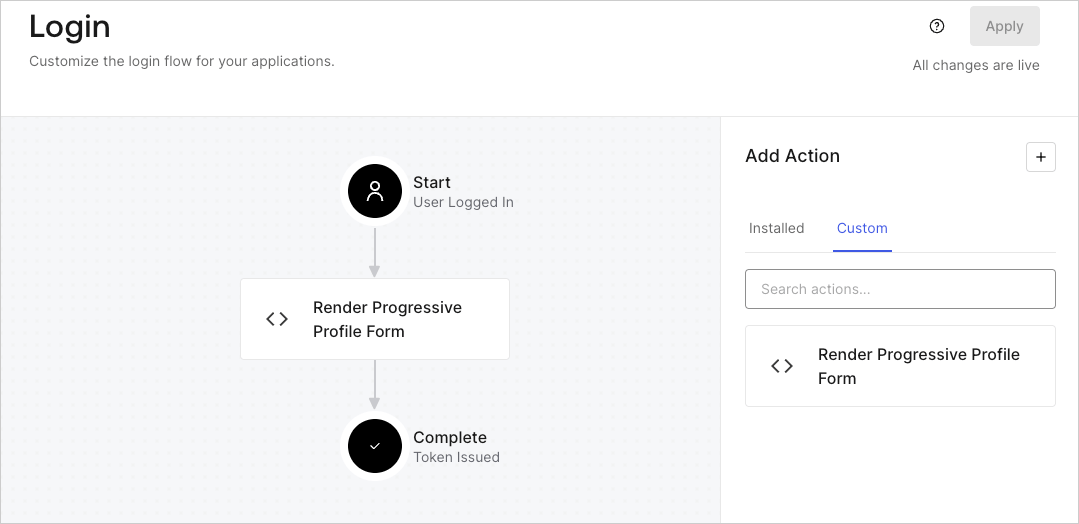
1. Navigate to **Auth0 Dashboard > Actions > Flows > Login.**
2. Select the **+** icon and select **Build from scratch**:

   * **Name**: Enter `Render Progressive Profile Form`.
   * **Trigger**: Select `Login / Post Login`.
   * **Runtime**: Select the recommended version.
3. Select **Create**.

To configure the post-login Action:

1. Delete the existing code from the Code editor.
2. Paste the form embed code into the Code editor.
3. Edit the code to define the conditional logic that will render the form.

   ```javascript lines theme={null}
   /**
   * @param {Event} event - Details about the user and the context in which they are logging in.
   * @param {PostLoginAPI} api - Interface whose methods can be used to change the behavior of the login.
   */
   exports.onExecutePostLogin = async (event, api) => {
     const FORM_ID = 'REPLACE_WITH_YOUR_FORM_ID';

     if (
       event.stats.logins_count > 2 &&
       !event.user.user_metadata.company_name &&
       !event.user.user_metadata.job_title
     ) {
       api.prompt.render(FORM_ID);
     }
   }

   exports.onContinuePostLogin = async (event, api) => { }
   ```

   <Callout icon="file-lines" color="#0EA5E9" iconType="regular">
     The example code above will render the form when a user has a login count > 2 and is missing the user metadata company\_name and job\_title properties.
   </Callout>
4. Select **Deploy.**
5. Drag and Drop the **Render Progressive Profile Form** Action to the **Login** flow.
   <Frame>
     <img src="https://mintcdn.com/docs-dev-update-explain-log-stream-pause/N1JwsnDnC0b_tPbe/docs/images/cdy7uua7fh8z/1QjjZdpTqTxx012UDN4xk9/99fba5ef4068a5688f1762eea7f42976/renderprogessiveprofile.png?fit=max&auto=format&n=N1JwsnDnC0b_tPbe&q=85&s=4955786da1d4ead5fe793318245bbbc7" alt="Dashboard > Forms > Use Cases Progressive Profile Login Action" data-og-width="1079" width="1079" data-og-height="524" height="524" data-path="docs/images/cdy7uua7fh8z/1QjjZdpTqTxx012UDN4xk9/99fba5ef4068a5688f1762eea7f42976/renderprogessiveprofile.png" data-optimize="true" data-opv="3" srcset="https://mintcdn.com/docs-dev-update-explain-log-stream-pause/N1JwsnDnC0b_tPbe/docs/images/cdy7uua7fh8z/1QjjZdpTqTxx012UDN4xk9/99fba5ef4068a5688f1762eea7f42976/renderprogessiveprofile.png?w=280&fit=max&auto=format&n=N1JwsnDnC0b_tPbe&q=85&s=9e3ffaa83fa104ff3718a3eca710b824 280w, https://mintcdn.com/docs-dev-update-explain-log-stream-pause/N1JwsnDnC0b_tPbe/docs/images/cdy7uua7fh8z/1QjjZdpTqTxx012UDN4xk9/99fba5ef4068a5688f1762eea7f42976/renderprogessiveprofile.png?w=560&fit=max&auto=format&n=N1JwsnDnC0b_tPbe&q=85&s=bc50dedc4352739f450264e454bee948 560w, https://mintcdn.com/docs-dev-update-explain-log-stream-pause/N1JwsnDnC0b_tPbe/docs/images/cdy7uua7fh8z/1QjjZdpTqTxx012UDN4xk9/99fba5ef4068a5688f1762eea7f42976/renderprogessiveprofile.png?w=840&fit=max&auto=format&n=N1JwsnDnC0b_tPbe&q=85&s=c2e2829dcc7a844fab056b628748a4d2 840w, https://mintcdn.com/docs-dev-update-explain-log-stream-pause/N1JwsnDnC0b_tPbe/docs/images/cdy7uua7fh8z/1QjjZdpTqTxx012UDN4xk9/99fba5ef4068a5688f1762eea7f42976/renderprogessiveprofile.png?w=1100&fit=max&auto=format&n=N1JwsnDnC0b_tPbe&q=85&s=6170579e48ad9113aa17957f285bad8d 1100w, https://mintcdn.com/docs-dev-update-explain-log-stream-pause/N1JwsnDnC0b_tPbe/docs/images/cdy7uua7fh8z/1QjjZdpTqTxx012UDN4xk9/99fba5ef4068a5688f1762eea7f42976/renderprogessiveprofile.png?w=1650&fit=max&auto=format&n=N1JwsnDnC0b_tPbe&q=85&s=1cf9ad7f58860d0cd20433a063590a2c 1650w, https://mintcdn.com/docs-dev-update-explain-log-stream-pause/N1JwsnDnC0b_tPbe/docs/images/cdy7uua7fh8z/1QjjZdpTqTxx012UDN4xk9/99fba5ef4068a5688f1762eea7f42976/renderprogessiveprofile.png?w=2500&fit=max&auto=format&n=N1JwsnDnC0b_tPbe&q=85&s=9f5ca2201875d8cd4fbe58ca3179c787 2500w" />
   </Frame>
6. Select **Apply**.

### Test implementation

Test the implementation by following these steps:

1. Log in with an existing user whose login count is greater than 2 and their `user_metadata` attributes `company_name` and `job_title` have no values.
2. The post-login action in the Login flow will render the form and prompt for the information.
3. Select **Auth0 Dashboard > User Management > Users,** locate the user and verify that the `user_metadata` attributes `company_name` and `job_title` contain information.
